Requirements and setup
What the app needs, how to check that a model is ready, and what each part of the app is for.
What you need
- A Mac running macOS 26 or later.
- A model to read your closet. Either Apple Intelligence turned on (the default, using Apple's on-device model), or a local model you run yourself.
There is no account or sign-in. The closet and tags work without a model. Running lenses, reading photos and chat need one.
Install the app
Download for MacVersion 1.0. Needs macOS 26 or later.
- Open the downloaded file.
- Drag the app to the Applications folder.
- Open String Hopper from the Applications folder.
Check that a model is ready
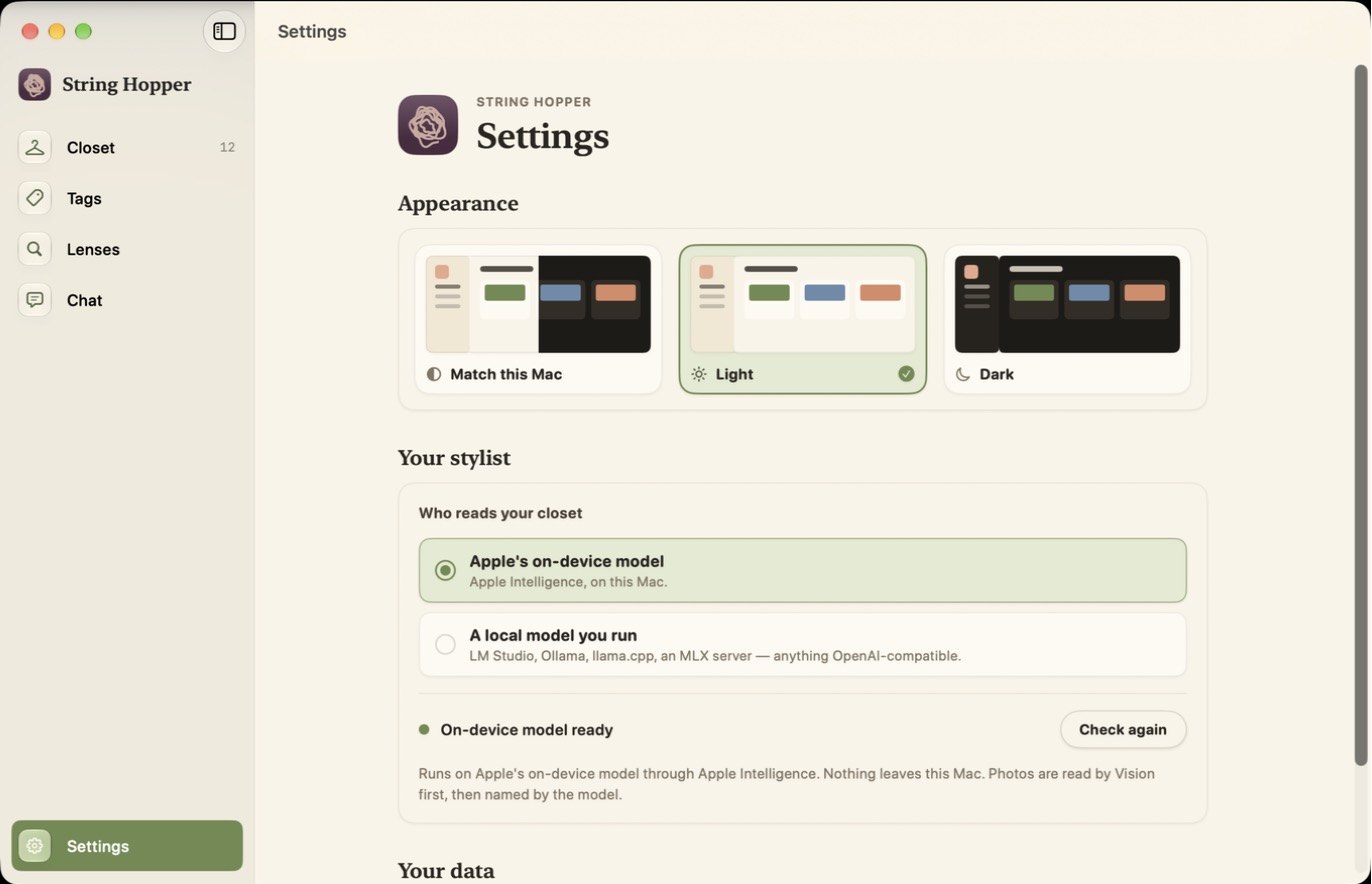
- Click Settings at the bottom of the sidebar, or press ⌘,.
- Under Your stylist, look at the status line. A green dot and On-device model ready means lenses and chat will run.
- If it shows something else, click Check again, then see what each message means.
The parts of the app
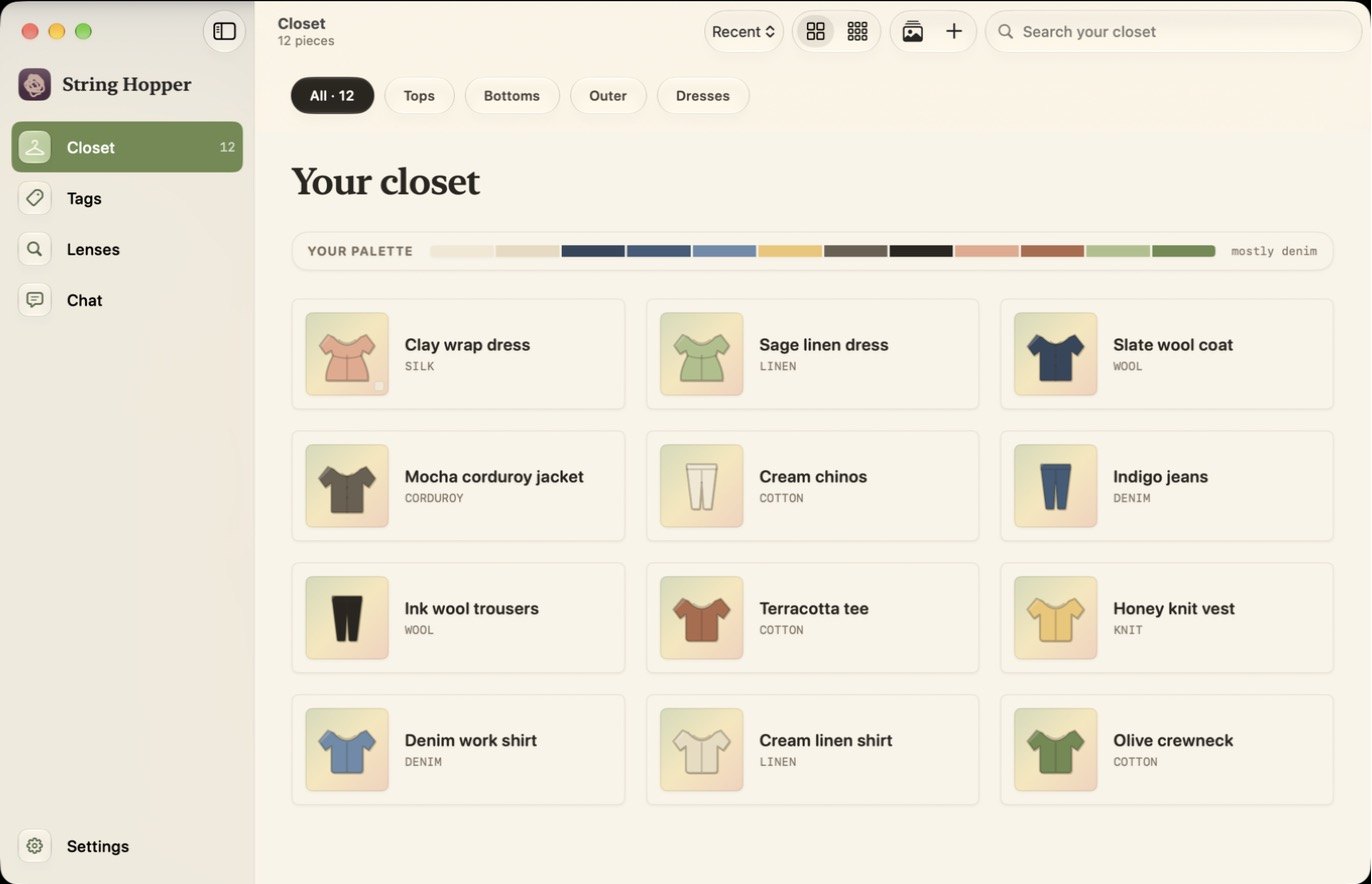
The sidebar has five sections.
| Section | What it is for | Tutorial |
|---|---|---|
| Closet | Every piece you own, as tiles. Add, edit and remove pieces here. | Add a piece Add a batch from photos |
| Tags | Filter the closet by the tags you have given your pieces. | Tag and filter |
| Lenses | Run a lens on your closet to get an outfit, a capsule or a list of pieces to remove. | Run a lens Create a lens |
| Chat | Add, search and change pieces by typing. | Use chat |
| Settings | Appearance, which model reads your closet, and clearing your data. | Connect a local model |
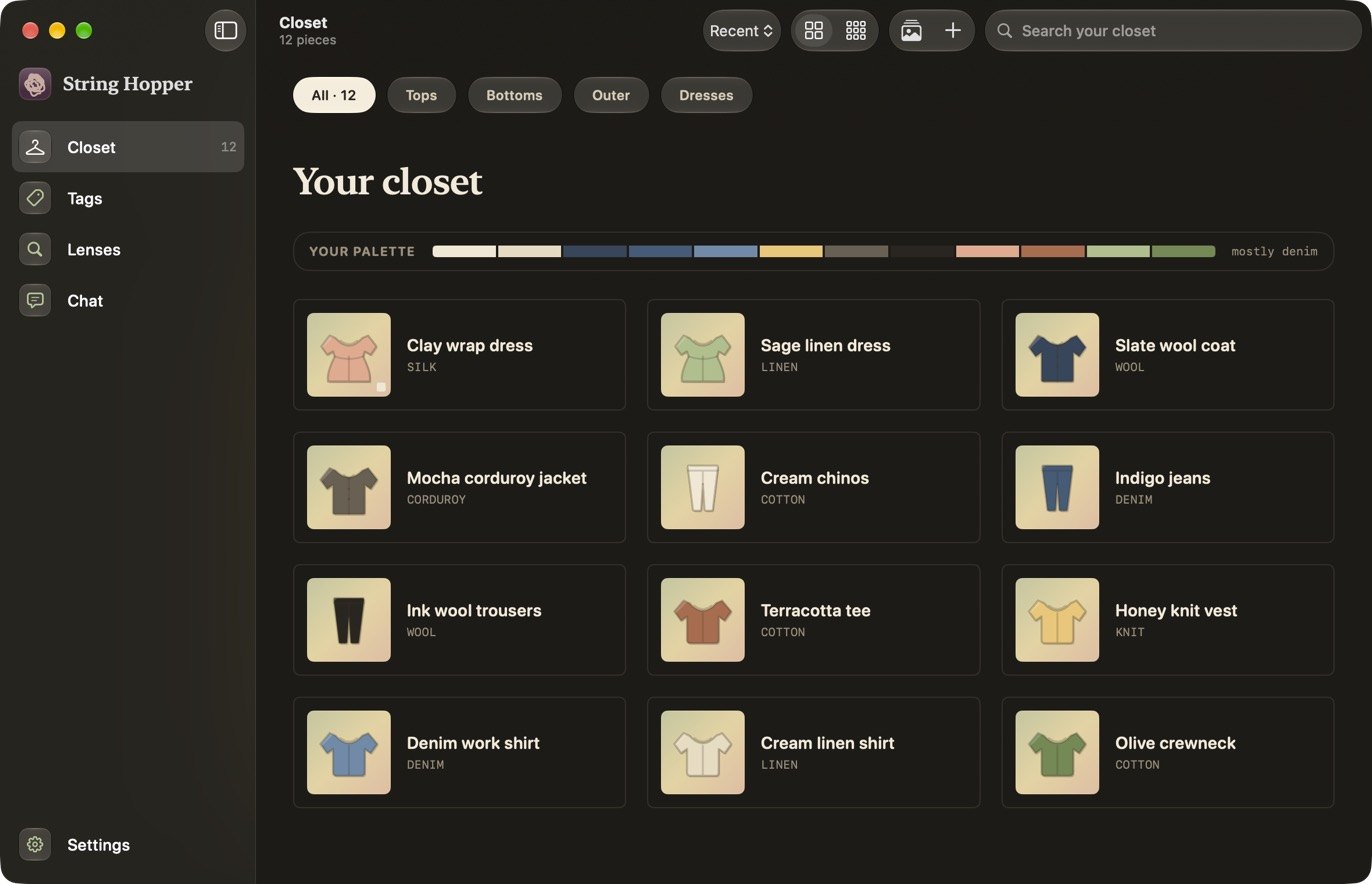
Light and dark
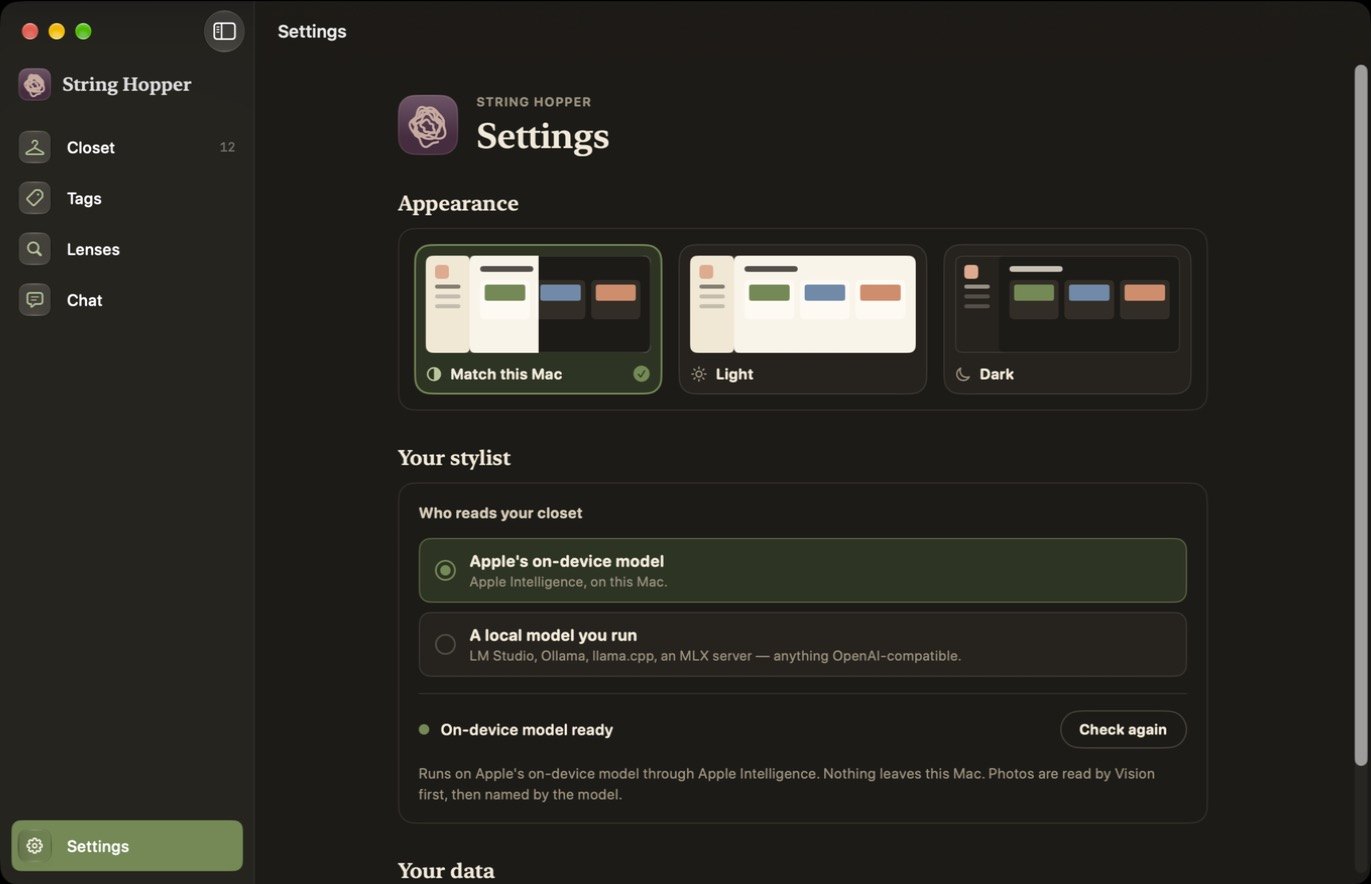
In Settings, under Appearance, choose Match this Mac, Light or Dark.
Where to go next
Start with Add a piece. Lenses and chat work from what is in your closet, so add a few pieces before trying them.