Use chat
Chat adds, searches and changes pieces from what you type. It shows each result as a card. A piece is saved only after you click Add to closet or type "add it".
Chat needs a model that is ready. On a local model, it also needs a model that supports tool calling. See What each feature needs.
-
Open Chat
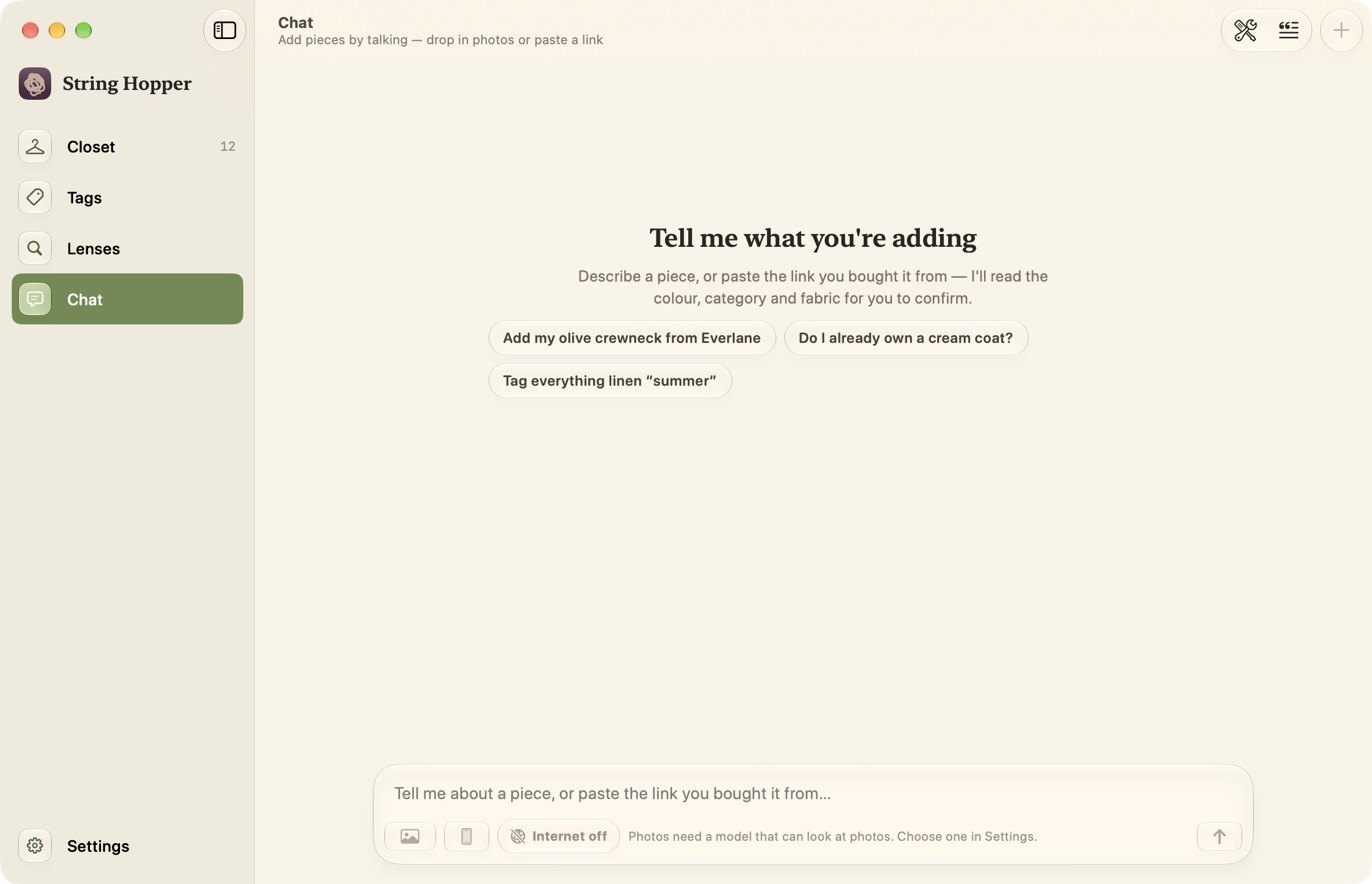
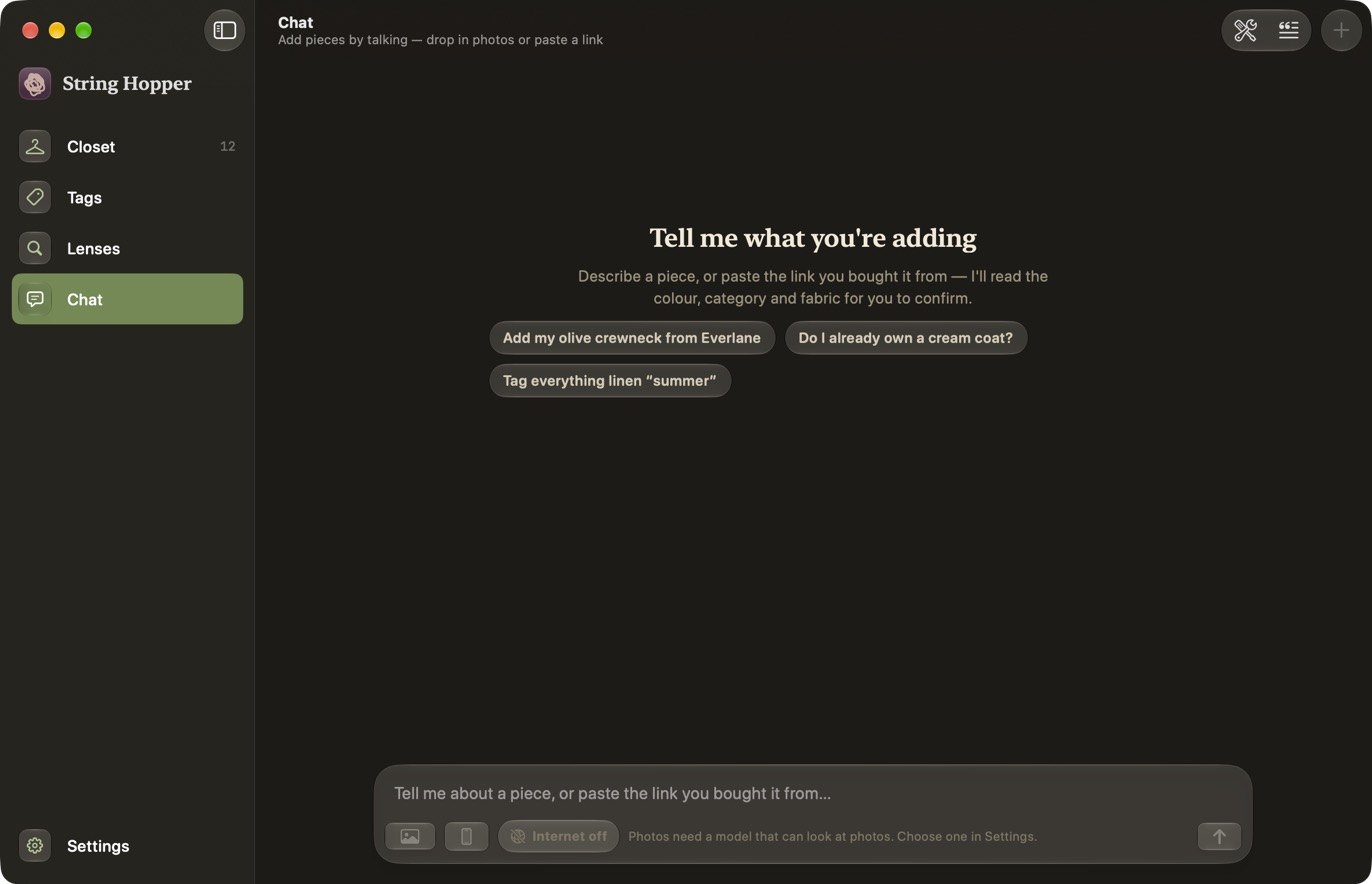
Click Chat in the sidebar. The input bar is at the bottom of the page.
-
Describe a piece or paste a link
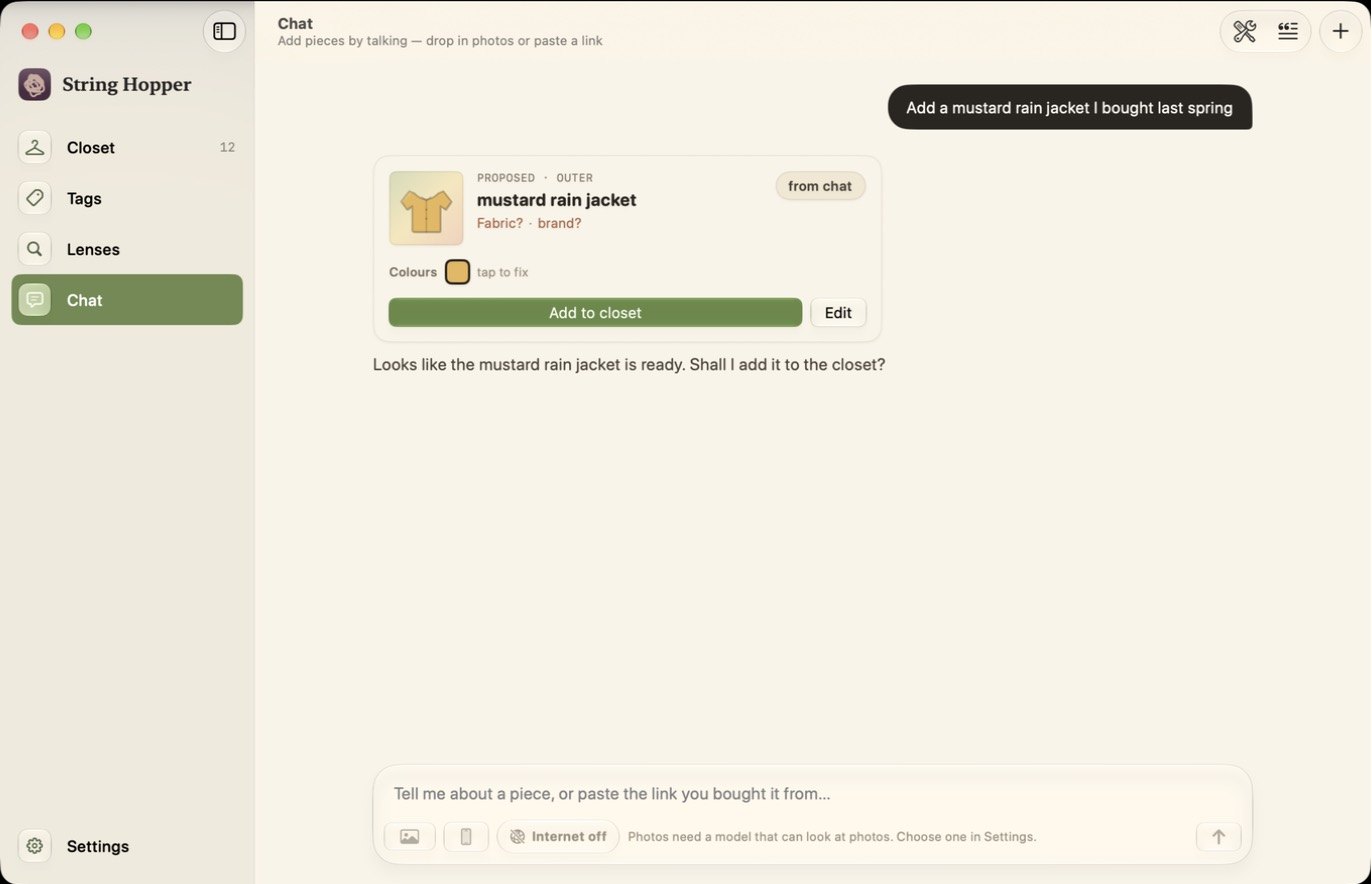
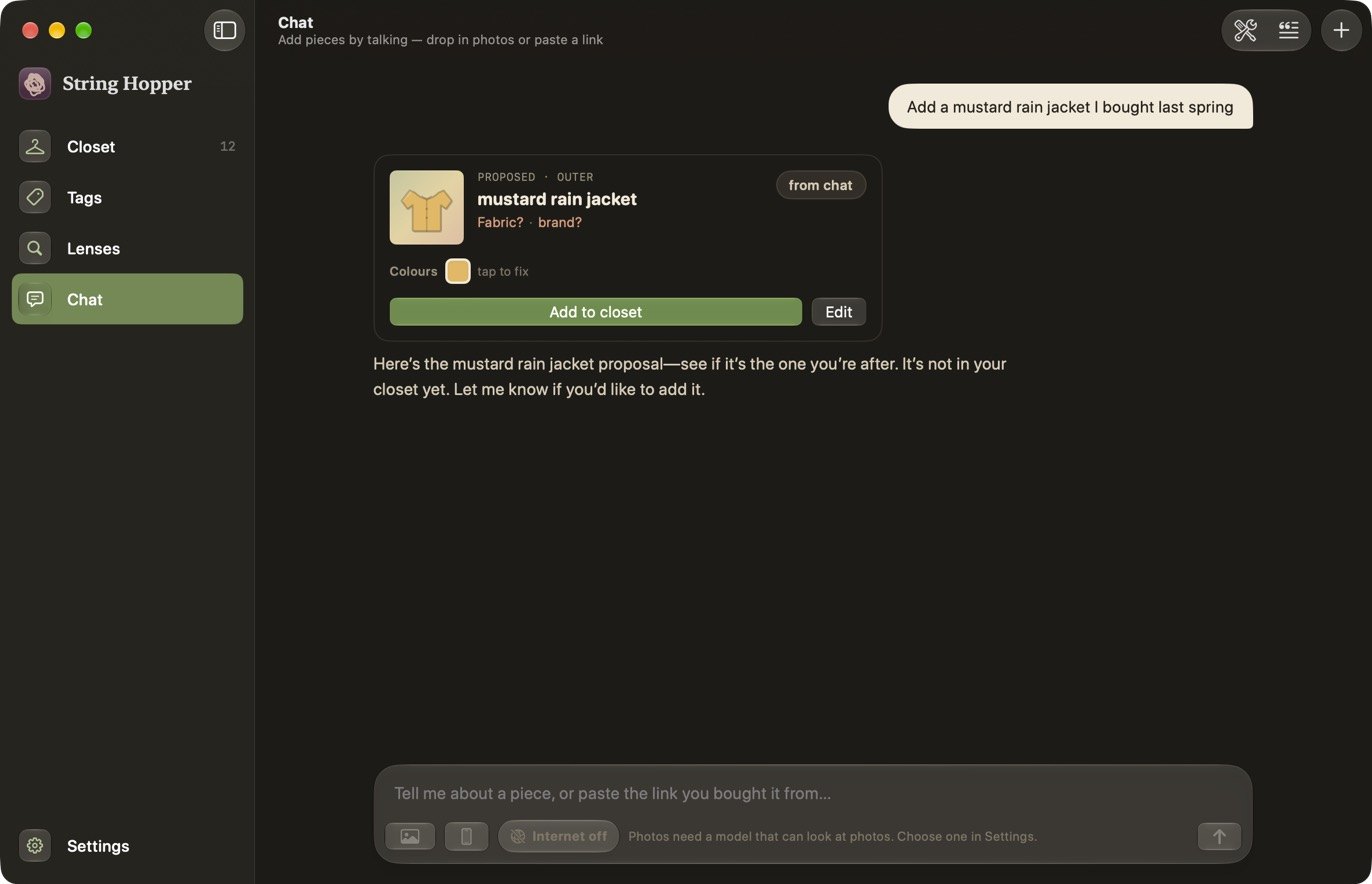
Type a description, for example Add a mustard rain jacket I bought last spring, or paste the link to the product page you bought it from. Click the send button. With internet access on, chat may search the web for the piece before it replies.
-
Check the suggestion
Chat replies with a card that shows the piece's name, category and colours. Click a colour to correct it, or click Edit to open the full form.
The piece is not added yet. To add it, click Add to closet on the card, or type add it.
-
Ask about your closet
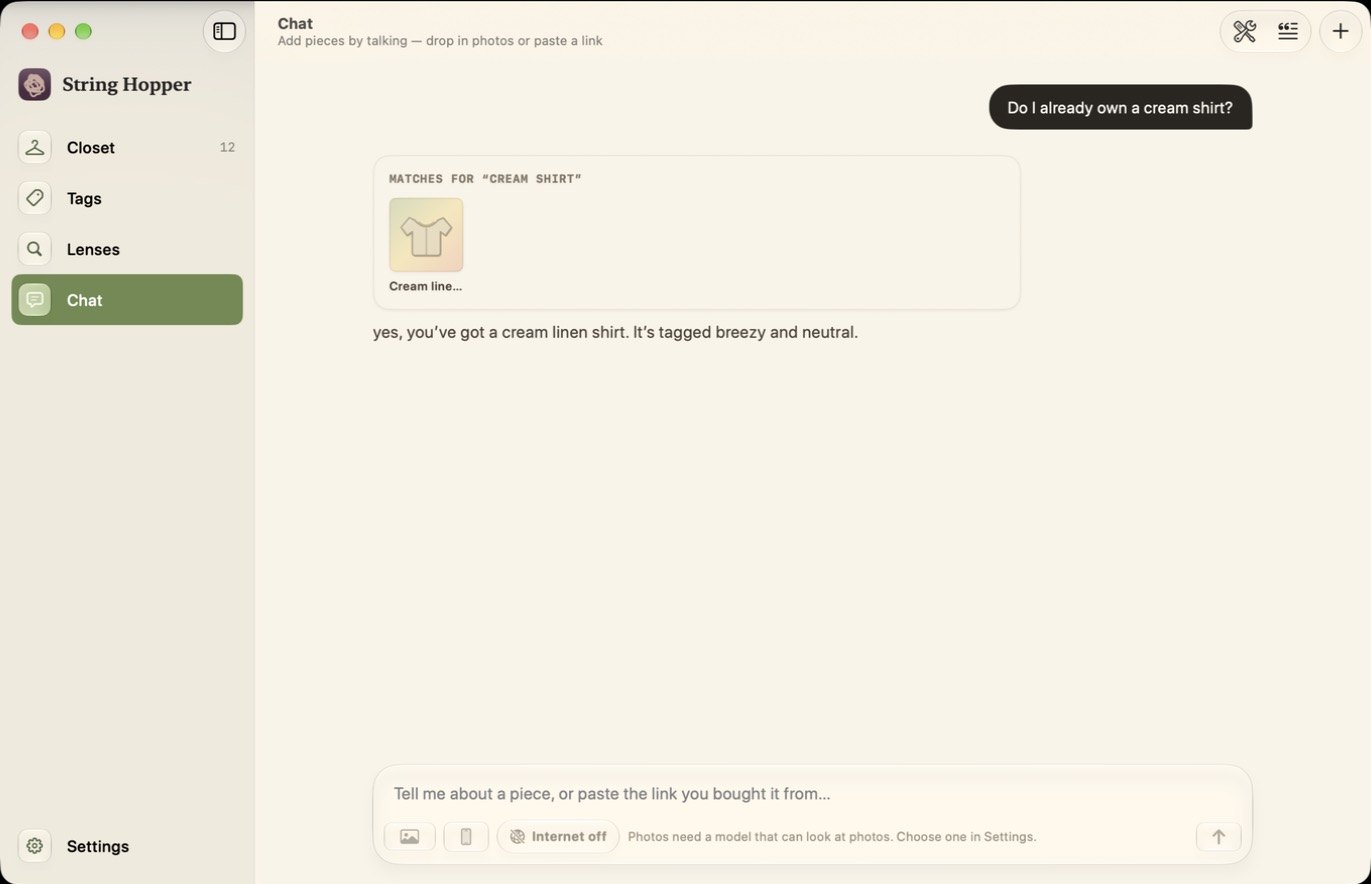
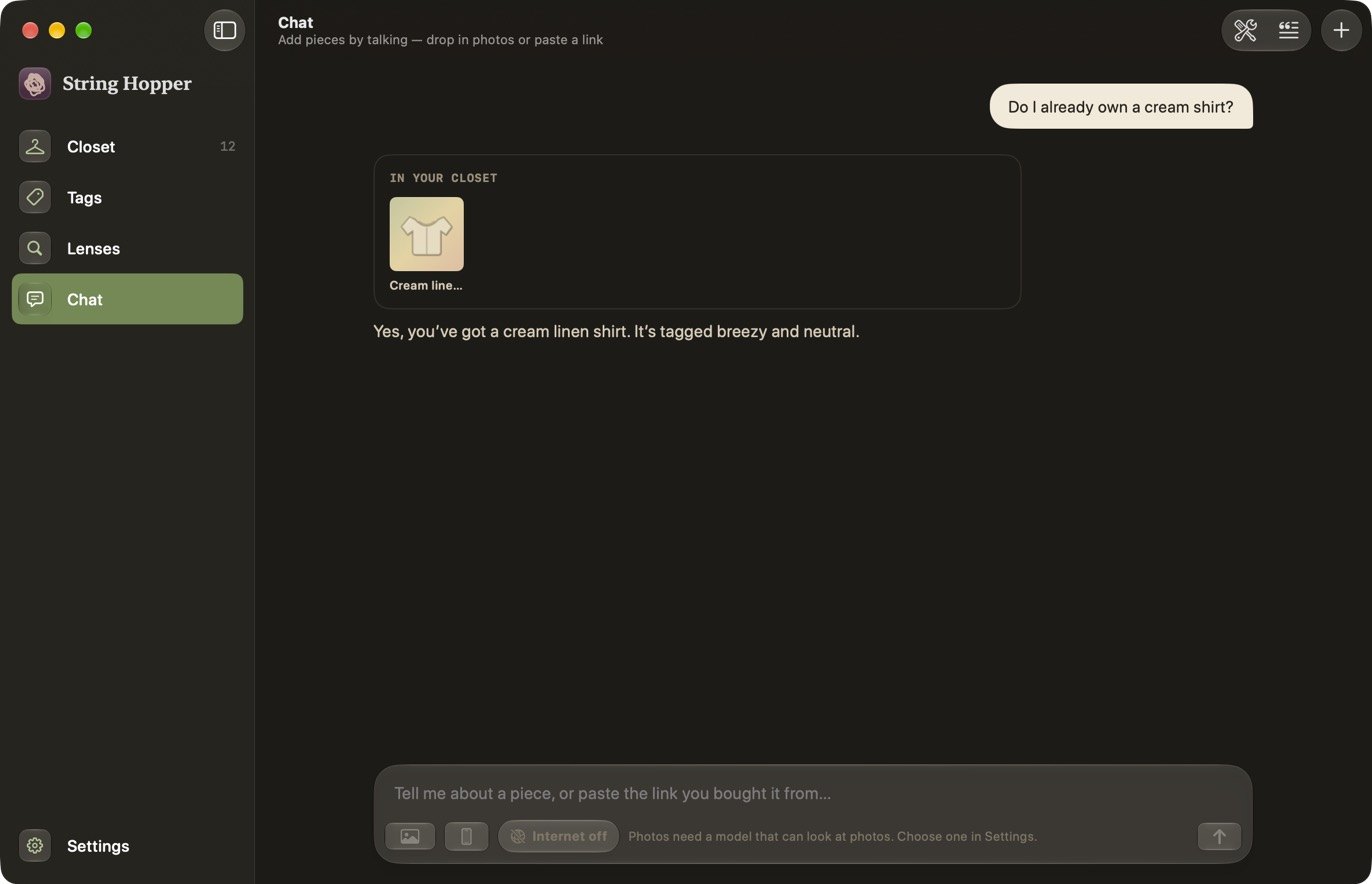
Type a question, for example Do I already own a cream shirt? Chat searches your closet and shows the matching pieces as tiles.
-
Change details
Type what to change, for example Tag everything linen “summer”. Chat shows a card for each piece it updated. Click Undo on a card to reverse that change.
-
Ask for an outfit
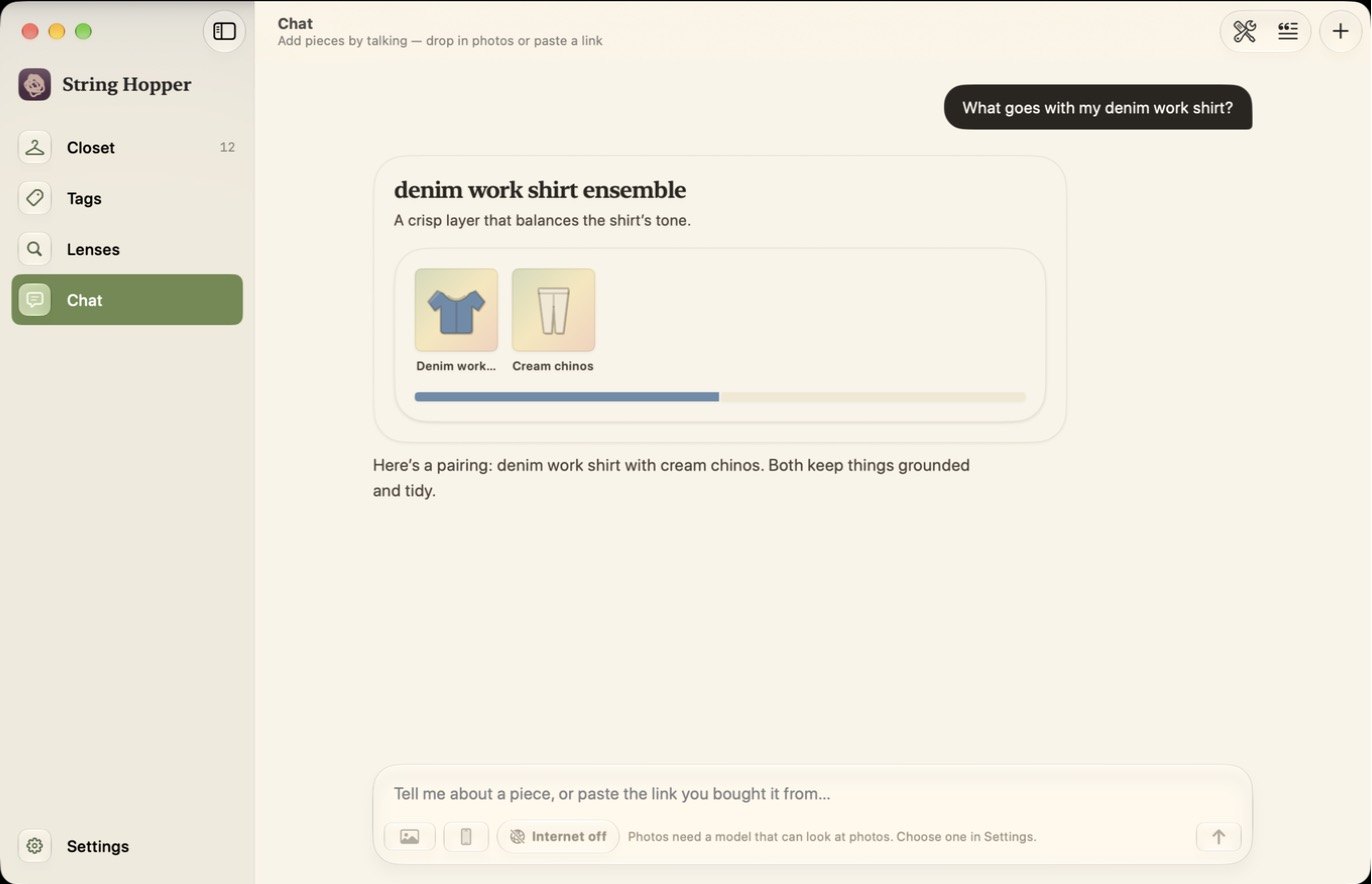
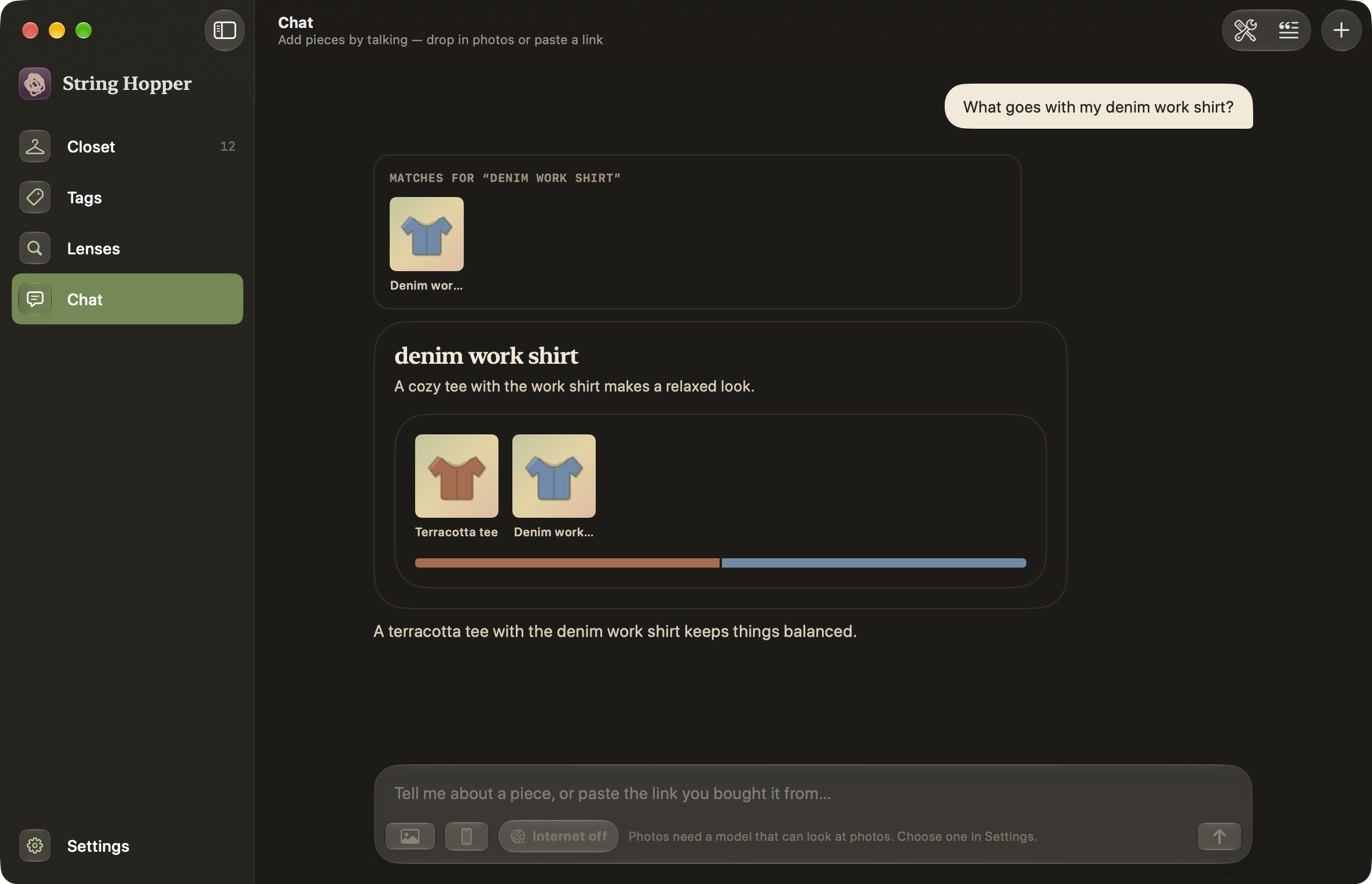
Type, for example, What goes with my denim work shirt? Chat shows an outfit as a card. It can also show an edit list or a capsule.
-
Remove a piece
Ask chat to remove a piece. Chat shows a confirmation card. Click Remove it or Keep it. Chat removes the piece only after you click Remove it. You cannot undo a removal.
Chat buttons
Three buttons are at the top right of the page. The internet button is in the input bar.
| Button | Where | What it does |
|---|---|---|
| What it can do | Top right | Lists the nine things chat can do, shown below. |
| Instructions | Top right | Lets you edit how the model should behave in chat. Reset to default restores the original. Changes apply from your next message. |
| Internet on / Internet off | Input bar | Turns internet access on or off. See below. |
| New chat | Top right | Clears the conversation. It does not change your closet. |
What chat can do
| Action | Type | What happens |
|---|---|---|
| Look at photos | automatic | Reads the photos you attach: what the piece is and its colours. |
| Read a link | internet | Reads a product page you paste: name, brand, colour, fabric, price and the photo. |
| Search the web | internet | Looks a piece up on DuckDuckGo when you ask it to find one, and reads the result you pick. |
| Suggest a piece | shows a card | Drafts a piece for you to check. |
| Add to your closet | writes · undoable | Adds a suggestion when you ask. |
| Change a detail | writes · undoable | Changes a brand, a tag or a colour on a piece you already have. |
| Search your closet | reads | Looks through your pieces to answer questions and avoid duplicates. |
| Lay pieces out | shows a card | Shows an outfit with alternates, an edit list, or a capsule set. |
| Remove a piece | asks first | Asks you to confirm before a piece is removed. |
Internet access
With Internet on, chat reads the links you paste and searches DuckDuckGo when you ask it to find a piece. It sends your search words and requests the pages it opens. It does not send your closet. Click the button to switch to Internet off. See Privacy.
Photos in chat
You can attach photos with the photo button, drag them into the chat, paste one with ⌘V, or take one with your iPhone. This is available only when the model can look at photos, which means a local vision model. With Apple's model, add photos from Closet instead. See Add a piece.
If chat does not work
See Chat in Troubleshooting.