Run a lens
A lens is a written instruction for the model. When you run a lens, the model reads your closet and returns an outfit, a capsule, or a list of pieces to reconsider.
You need at least two pieces in your closet and a model that is ready. See Check that a model is ready.
-
Open Lenses
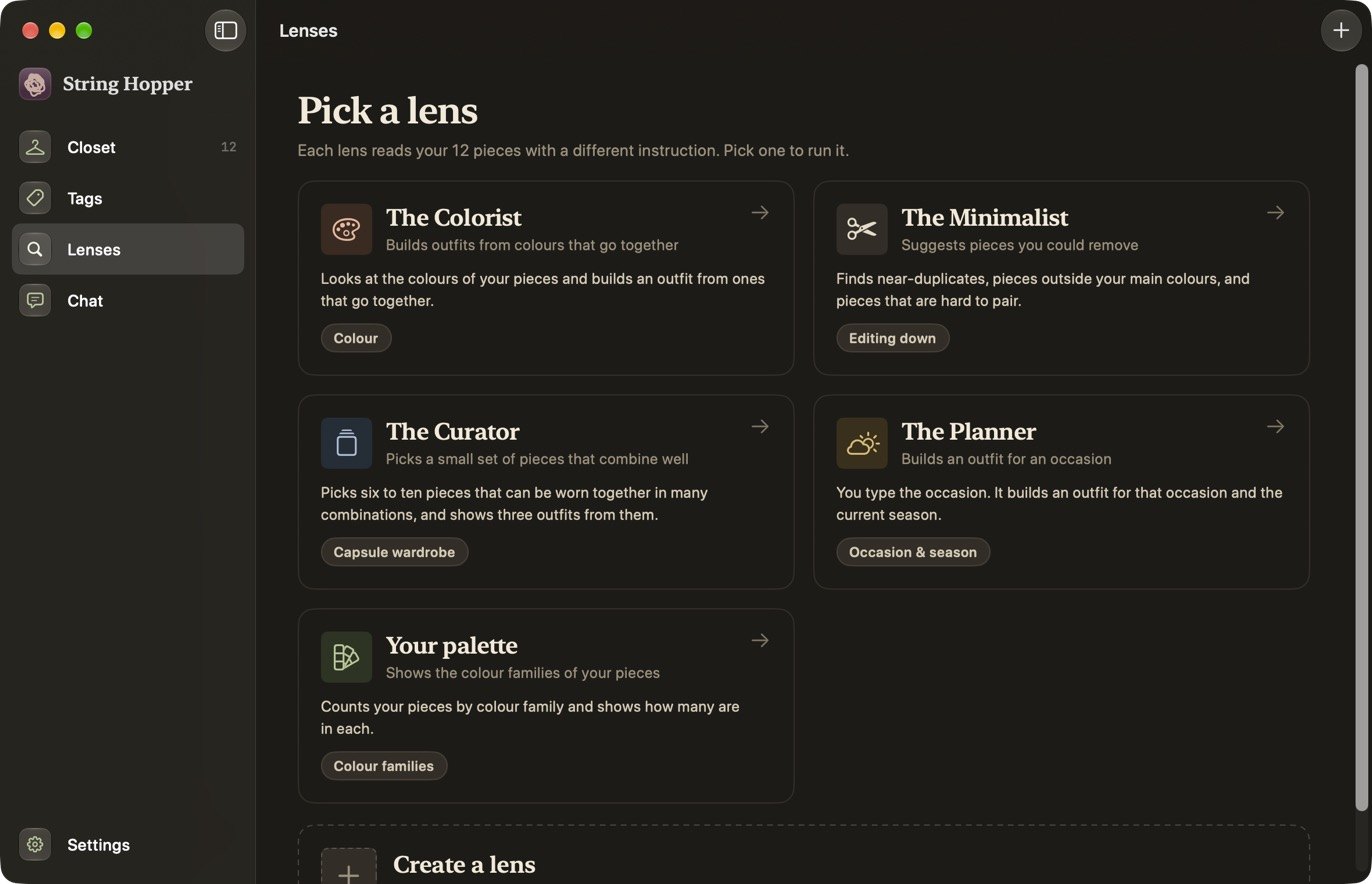
Click Lenses in the sidebar. Five lenses are built in.
Lens What it does Returns The Colorist Builds outfits from colours that go together. A look The Minimalist Suggests pieces you could remove. An edit The Curator Picks a small set of pieces that combine well. A capsule The Planner Builds an outfit for an occasion you type in. A look Your palette Shows which colour families your pieces fall into. Needs no model. A palette 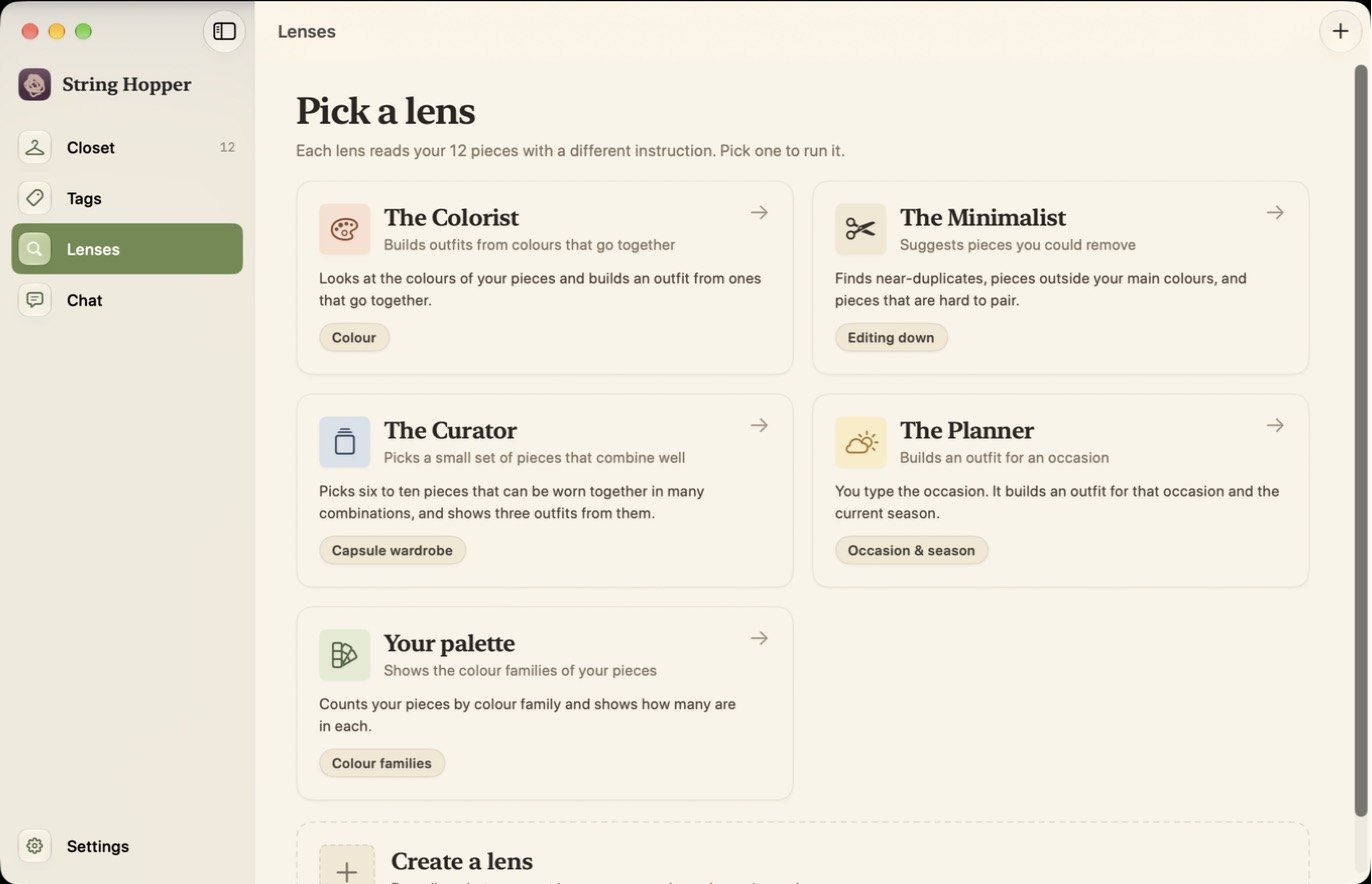
-
Open a lens
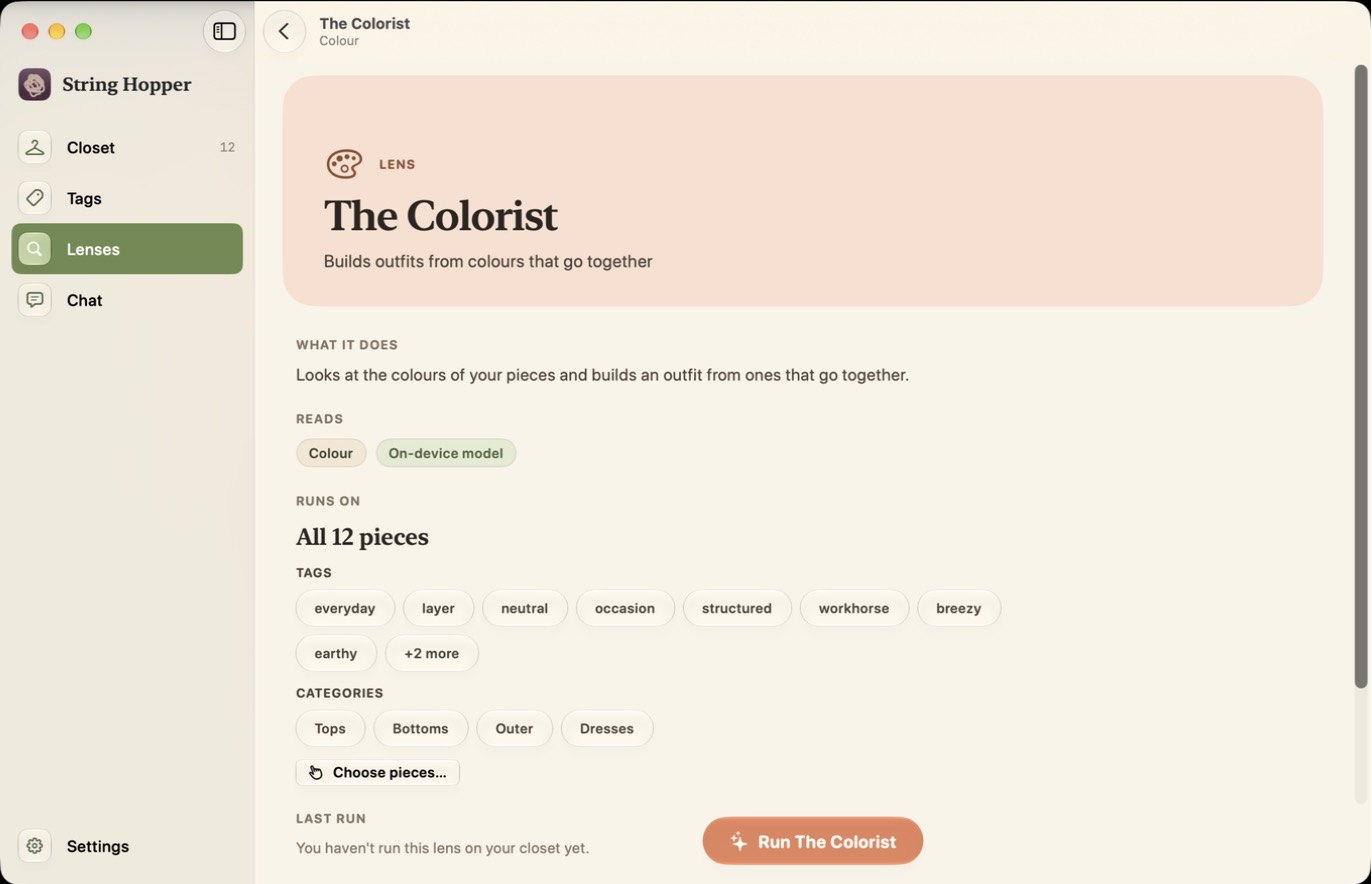
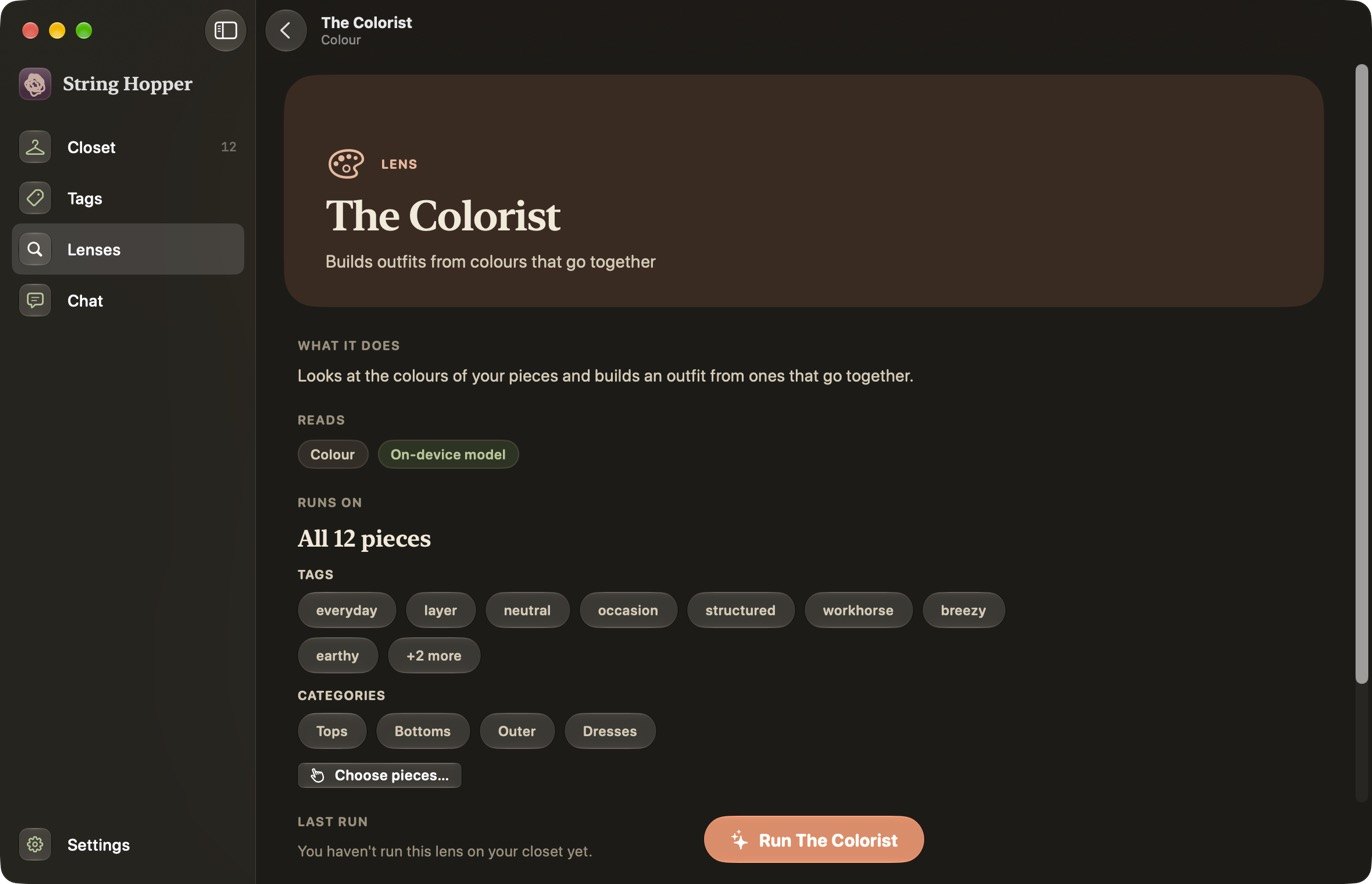
Click a lens, for example The Colorist. Its page shows what it does, what it reads, and which pieces it will run on.
-
Limit which pieces it reads (optional)
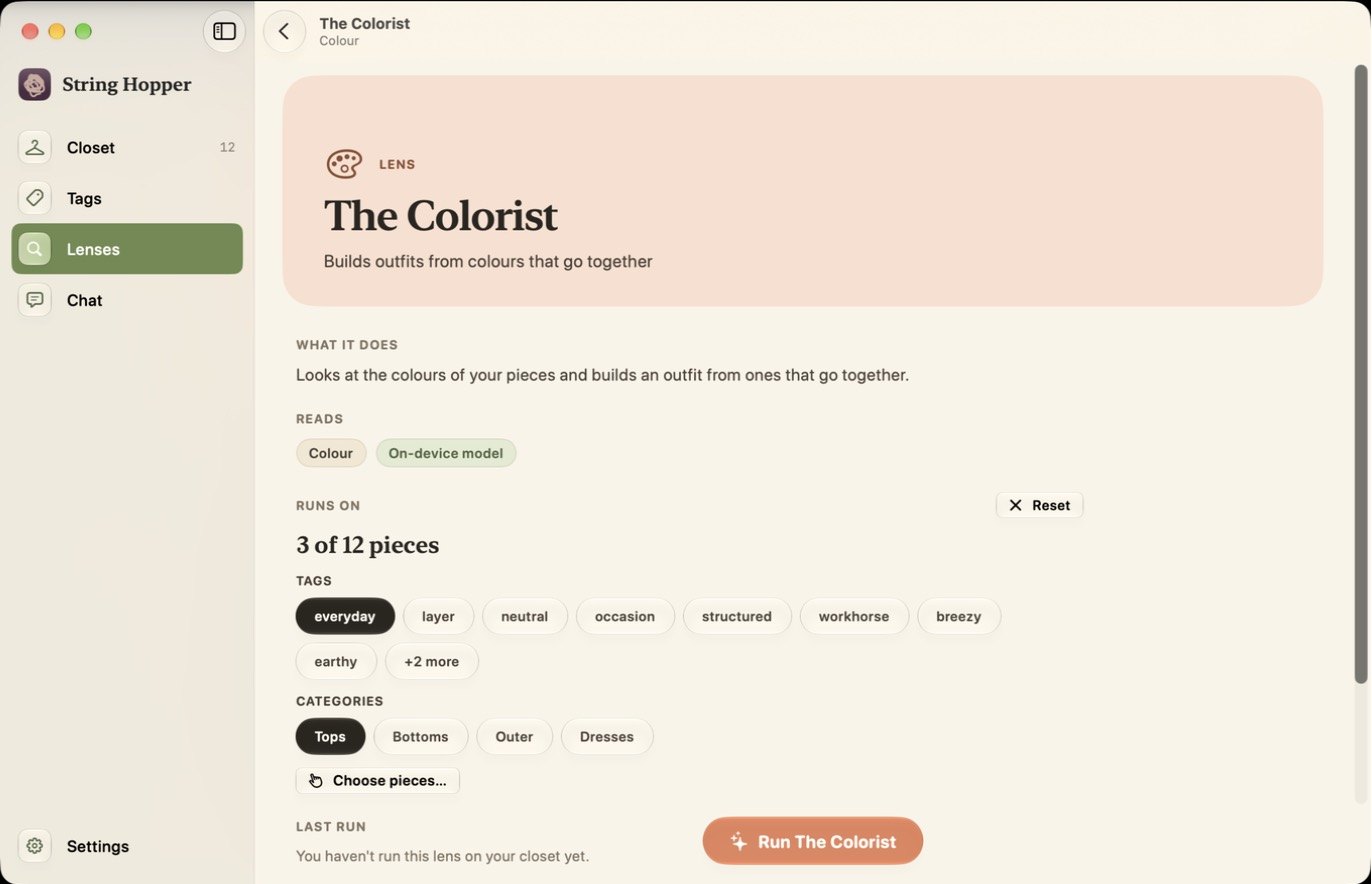
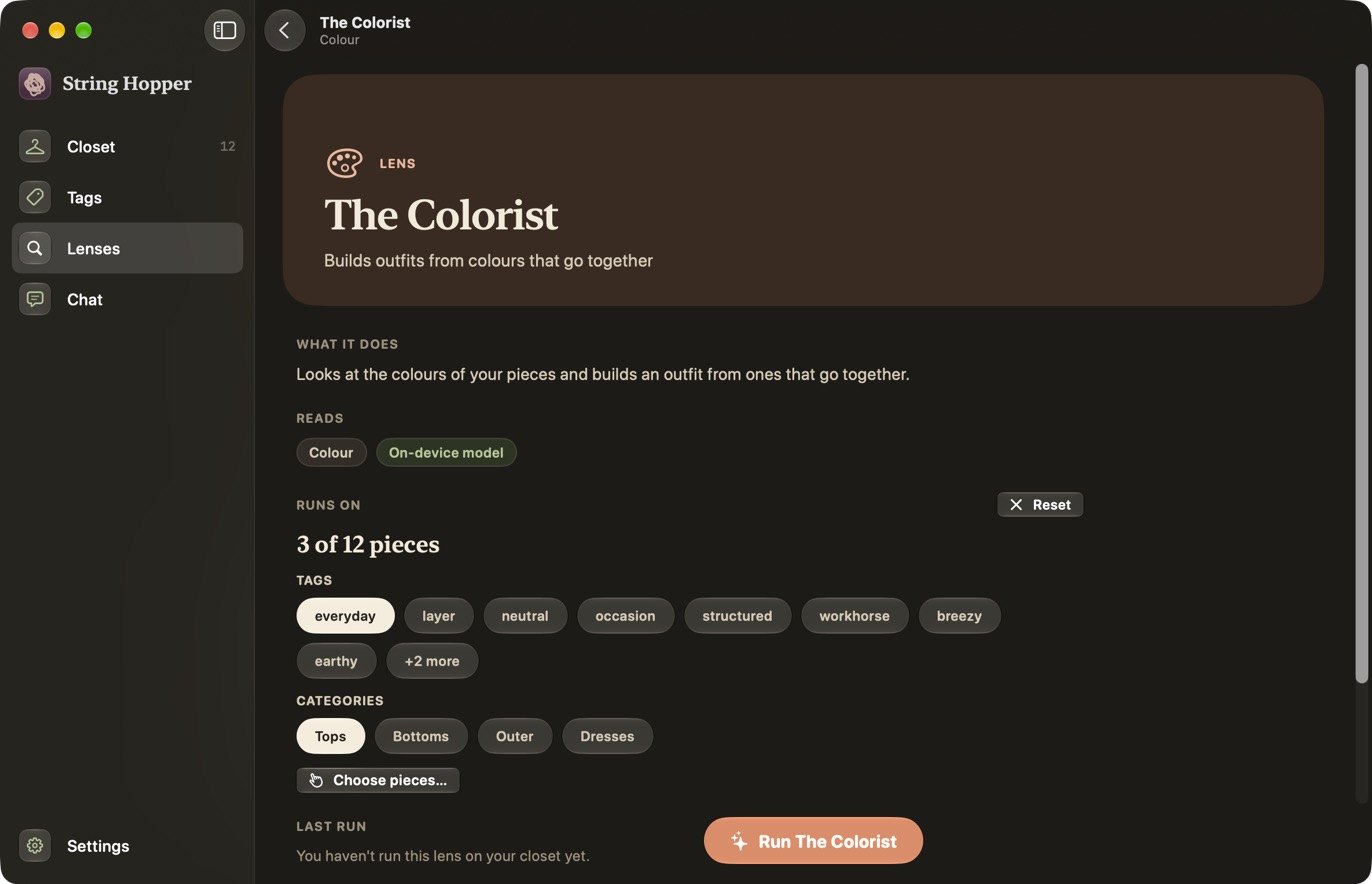
Under Runs on, the lens reads all your pieces unless you narrow it:
- Tags: only pieces that have all the tags you select.
- Categories: only the categories you select.
- Choose pieces…: click individual pieces to leave them out.
Click Reset to go back to all pieces.
-
Enter the occasion (The Planner only)
For The Planner, type the occasion in the field named The occasion, for example Dinner out, cool evening. The app adds the current season.
-
Run it
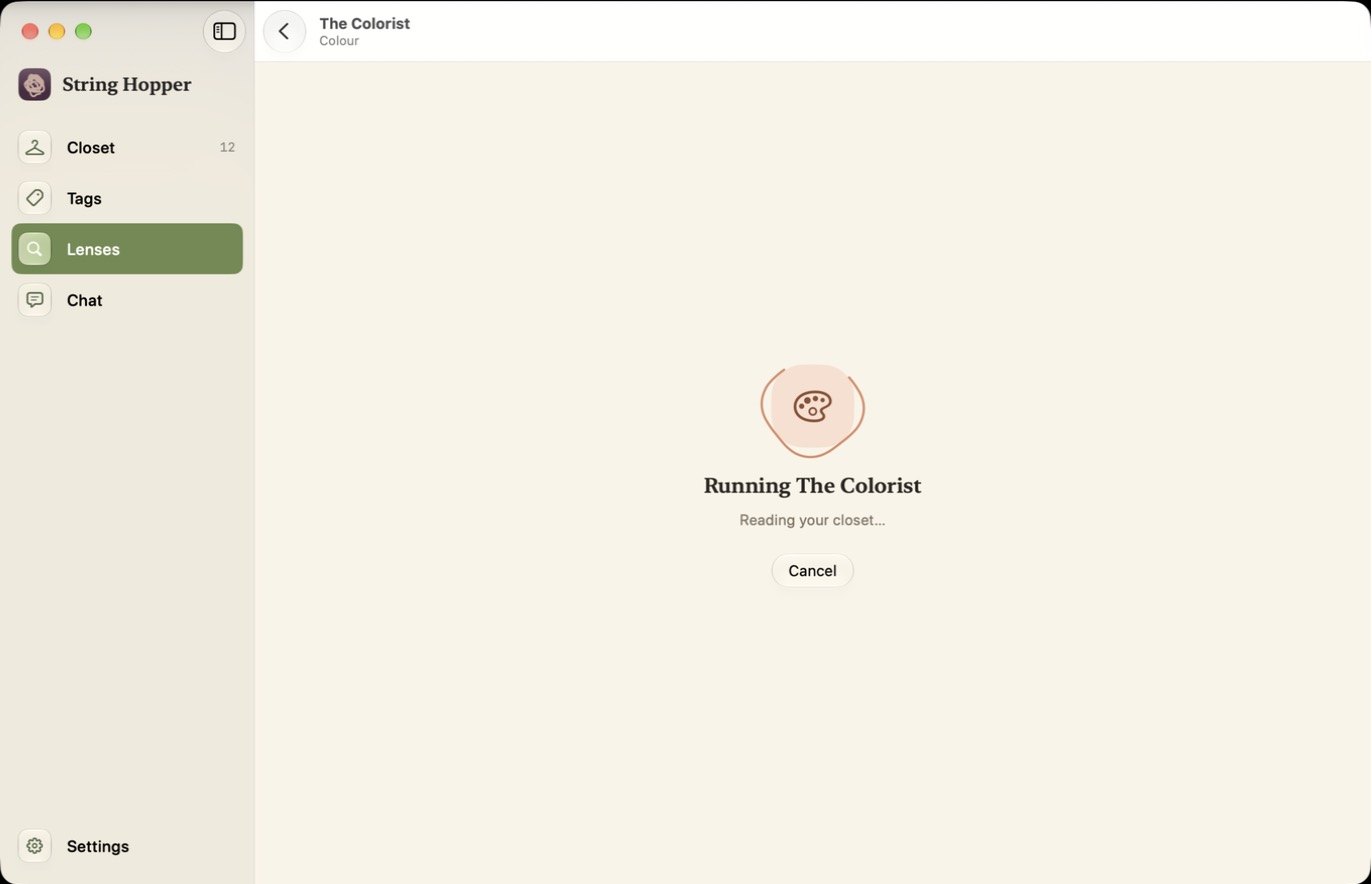
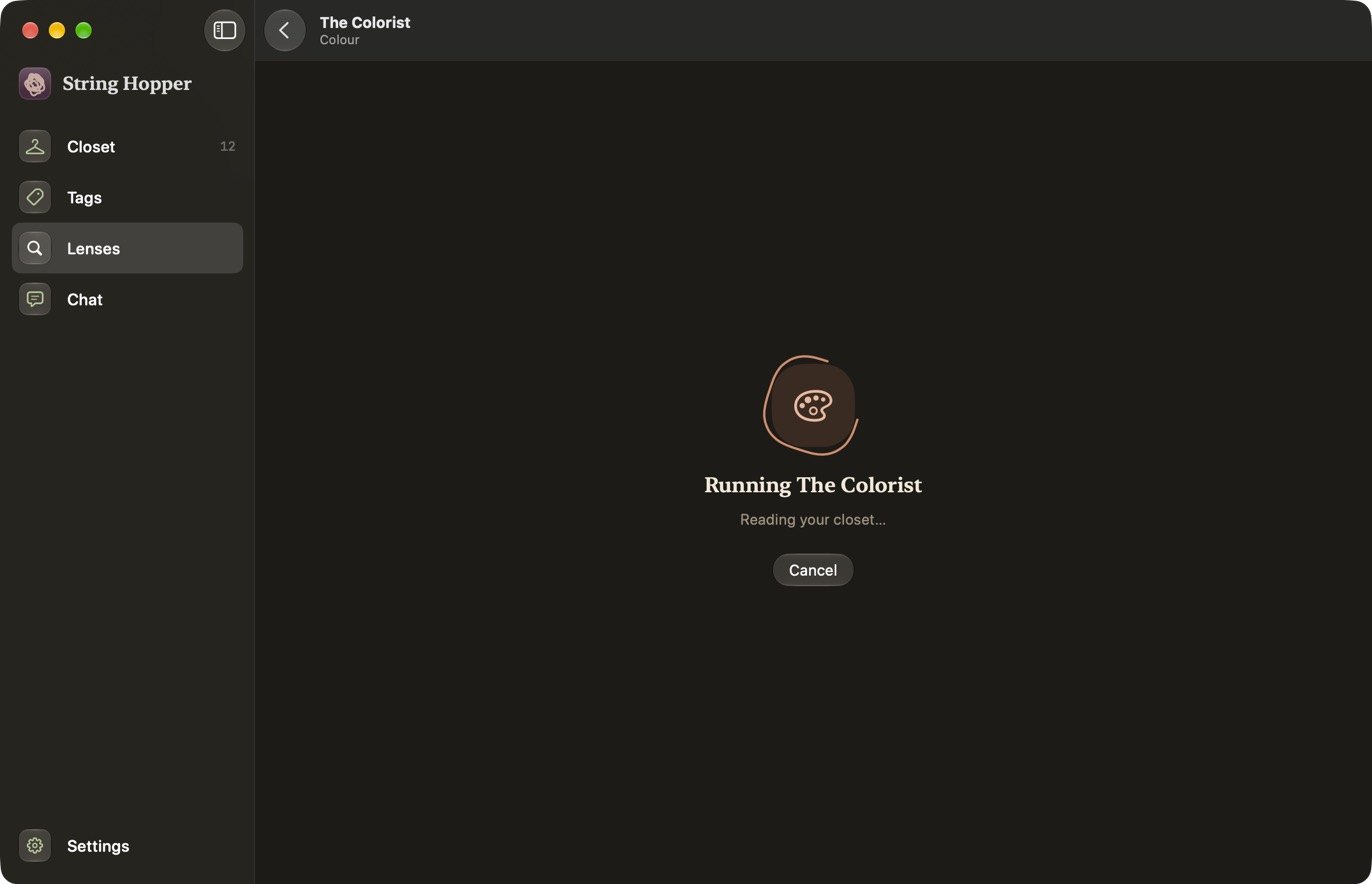
Click the button at the bottom of the page. It is labelled Run The Colorist (it uses the lens name), or Run again if you have run the lens before. While the model works, the page shows the lens name and a Cancel button. A local model can take a minute or more.
-
Read the result
What you see depends on the lens:
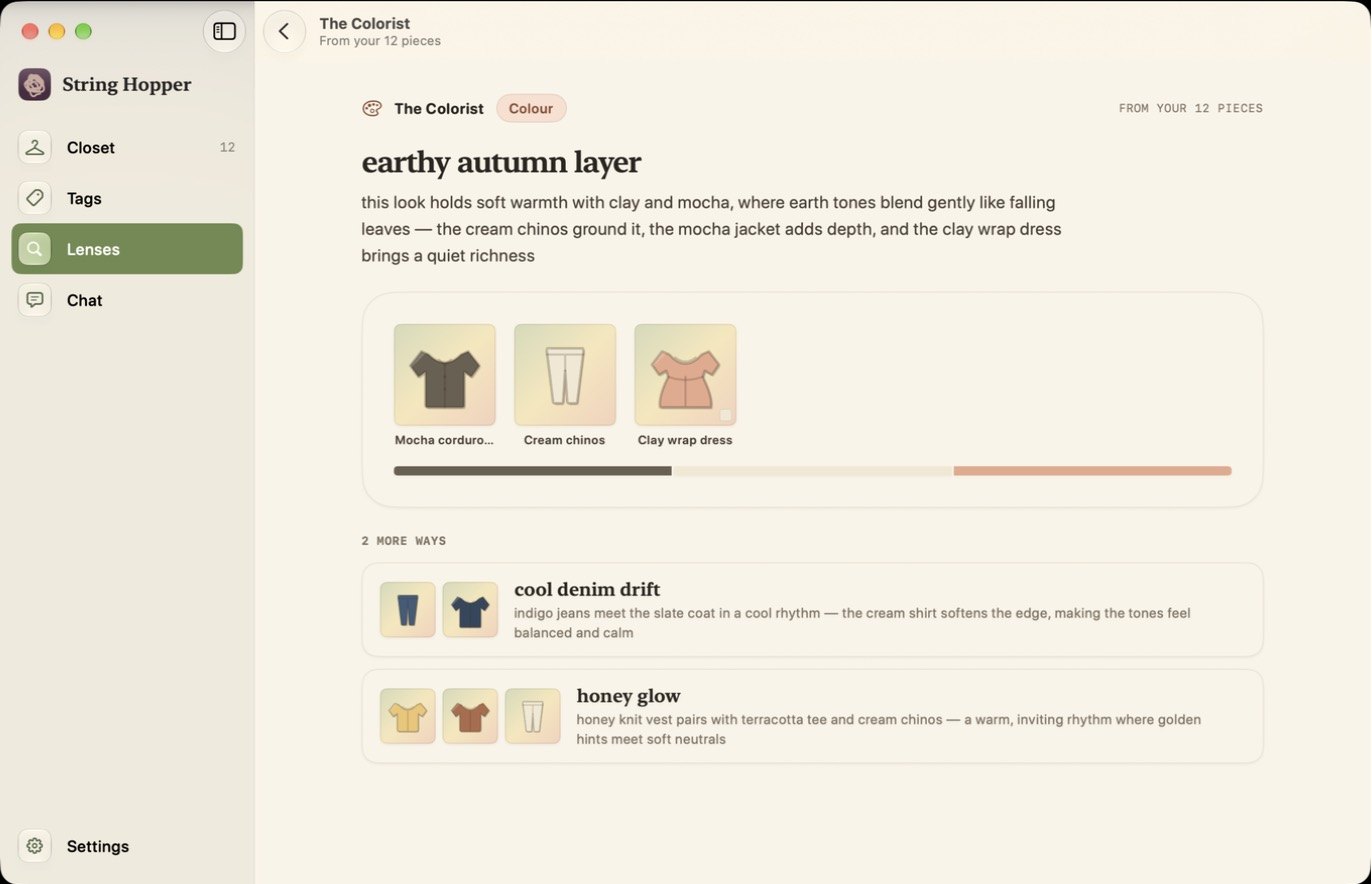
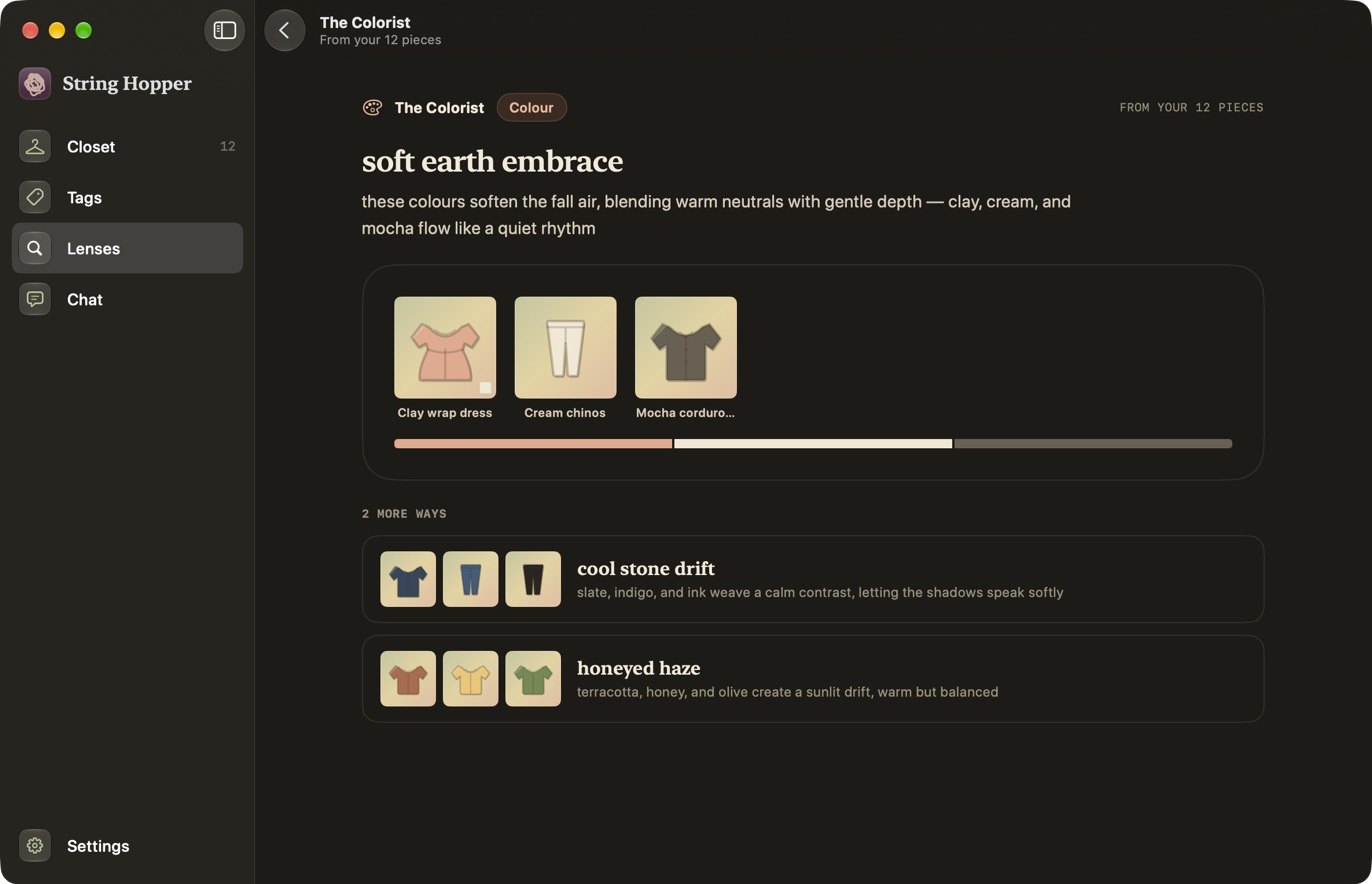
- A look: one outfit with a note on why it works, and one or two alternates.
- An edit: two to four pieces, each with a reason and a flag: Duplicate, Off-palette, Dormant or Hard to pair. The lens does not remove them.
- A capsule: a set of six to ten pieces and a few ways to combine them.
- A palette: your colour families with a count and a percentage for each.
-
Come back to the result
The app saves the last result of each lens. Open the lens and click Open last result to see it again without running the model.
More lenses
Copy one from Sample lenses, then follow Create a lens.
If a lens fails
See Lenses in Troubleshooting.