Tag and filter
Tags are free text that you attach to pieces. You can filter the closet by them, and lenses can use them.
-
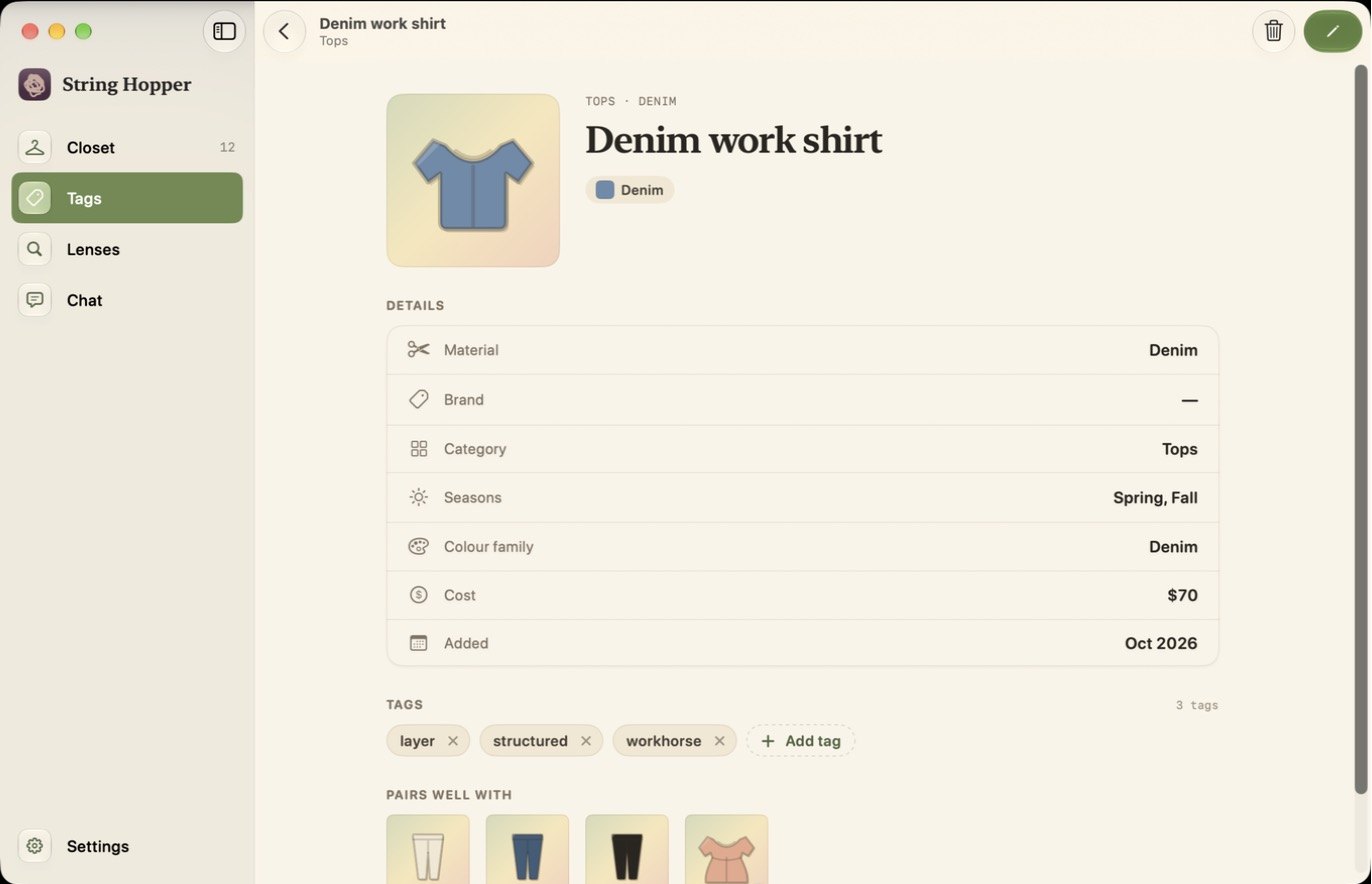
Open a piece
Open Closet and click a piece's tile.
-
Add a tag
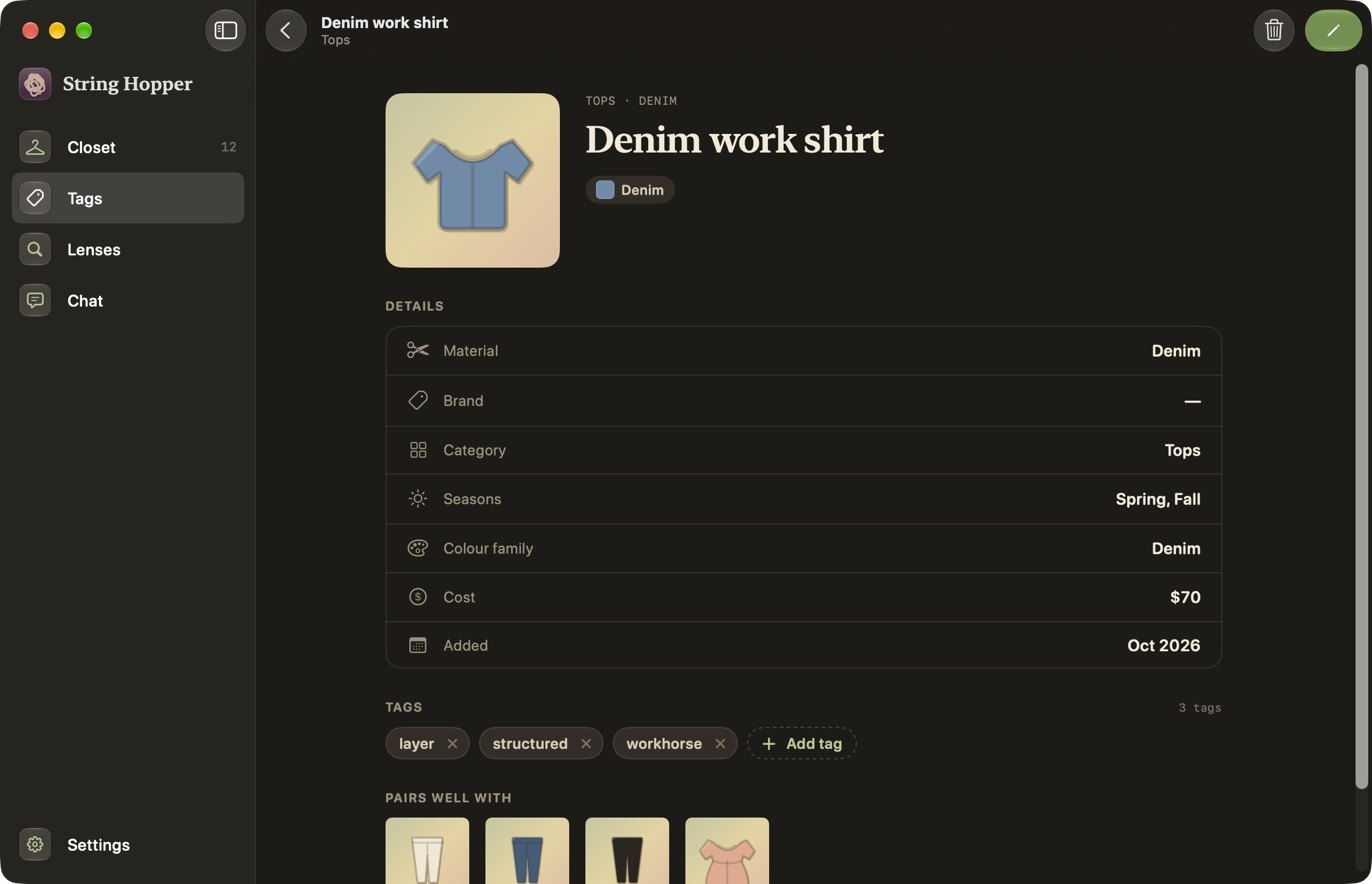
Under Tags, click Add tag, type the tag and press Return. To take a tag off, click the × on it.
The app suggests these, and you can use any words of your own:
everydayworkhorseoccasionloungewearcozybreezystructuredlayerminimalstatementearthywarmcoolneutral -
Open Tags
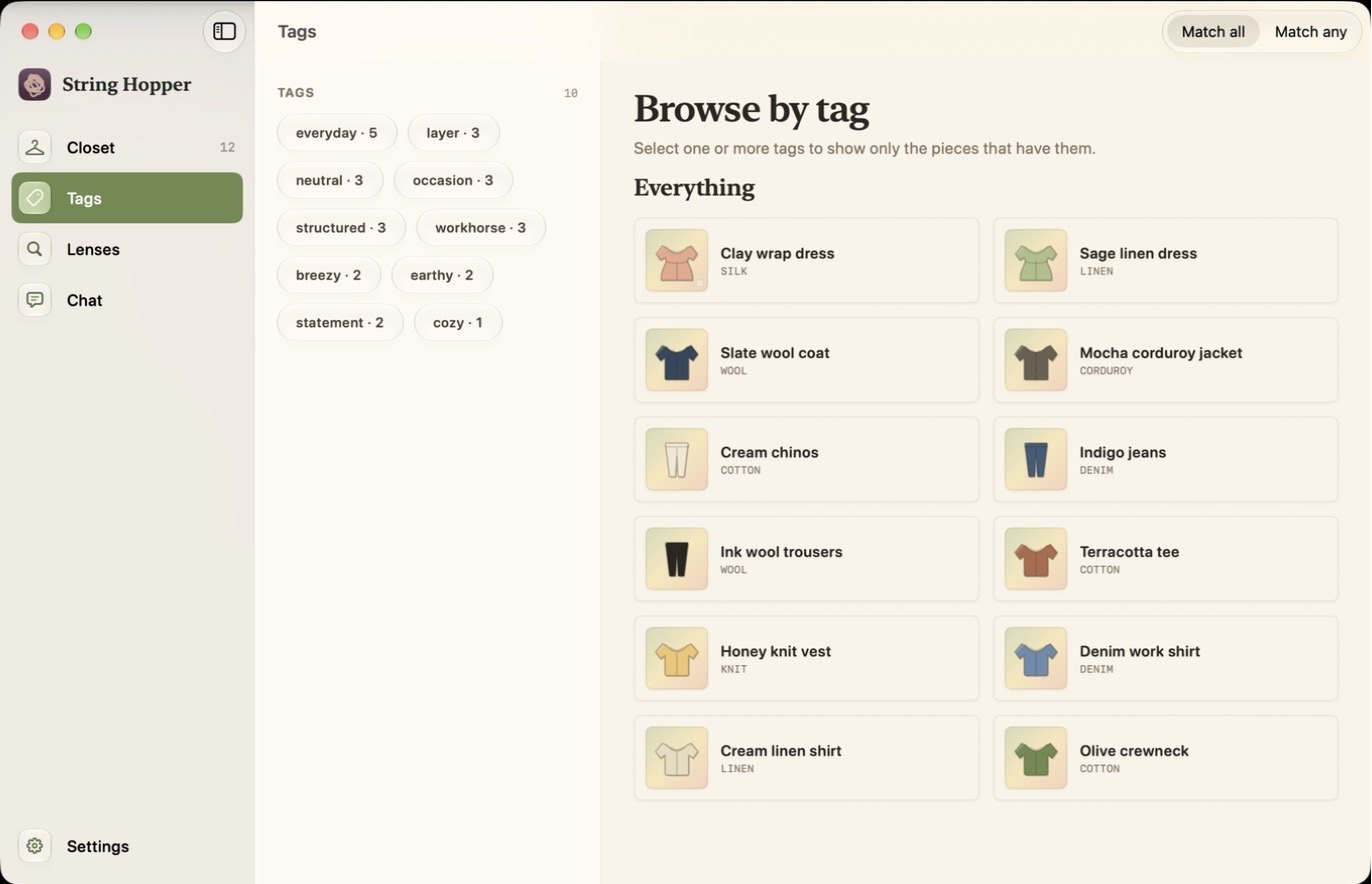
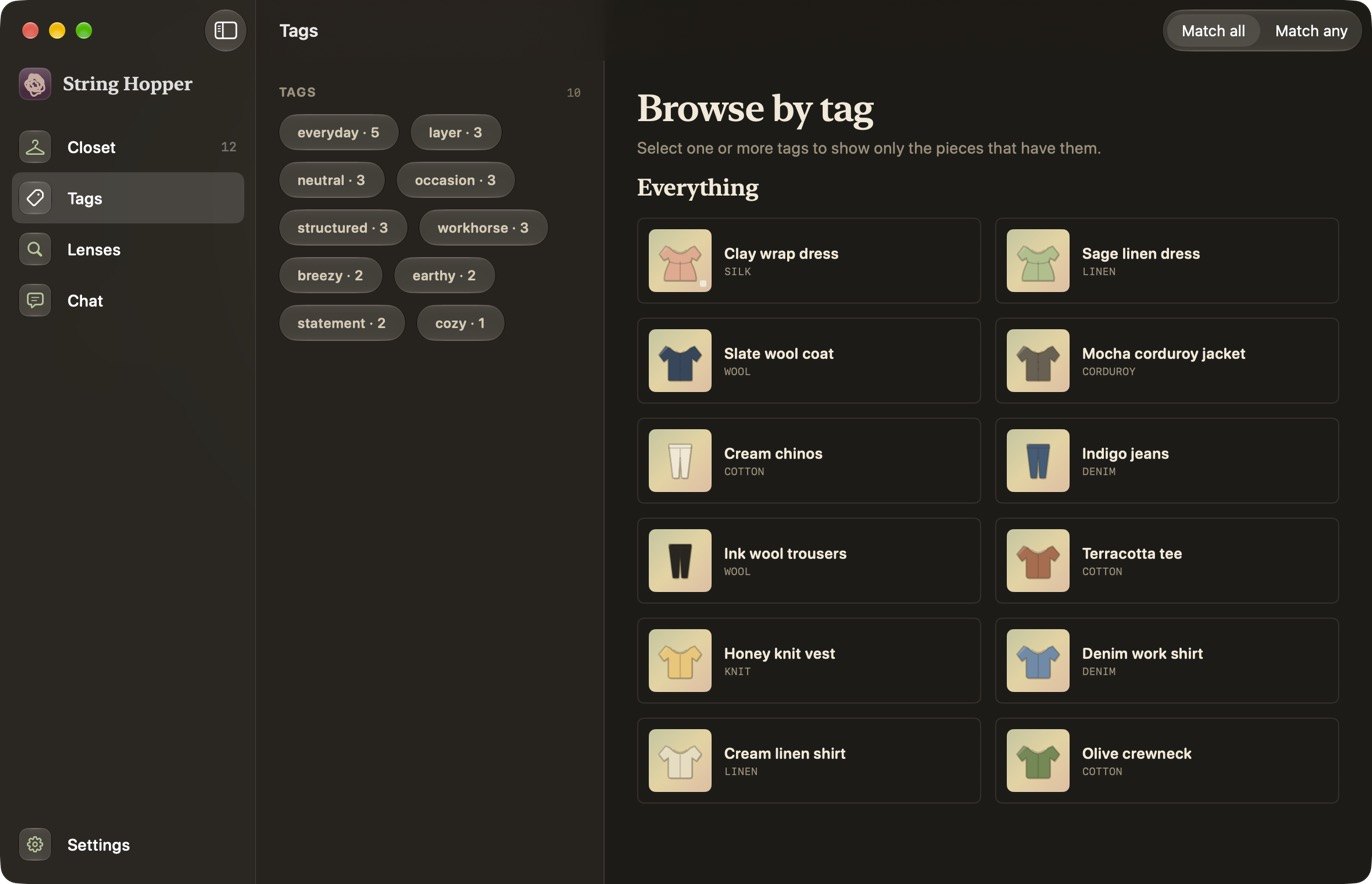
Click Tags in the sidebar. Every tag you have used is listed on the left with the number of pieces that have it. Your pieces are on the right.
-
Filter by one or more tags
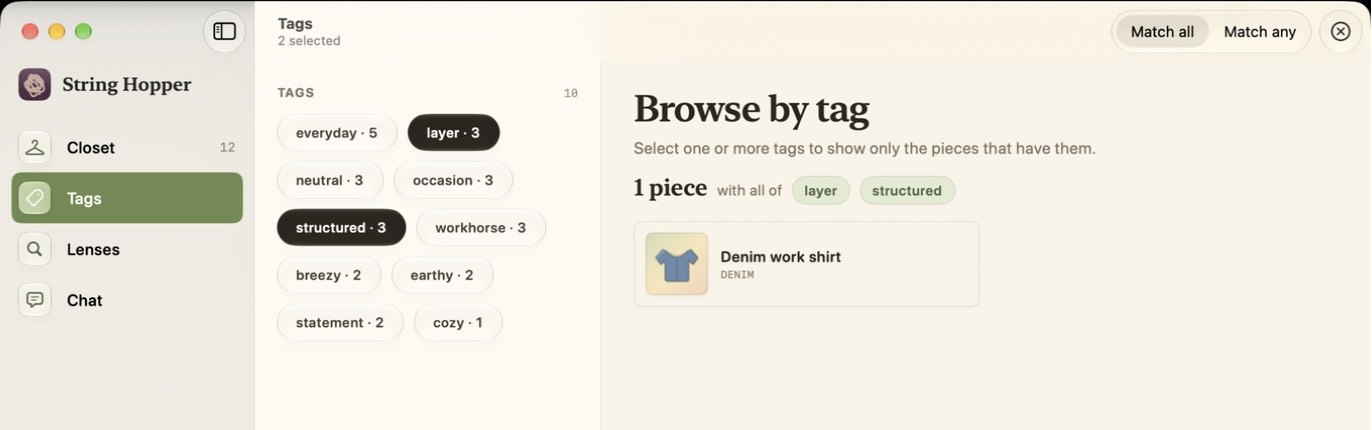
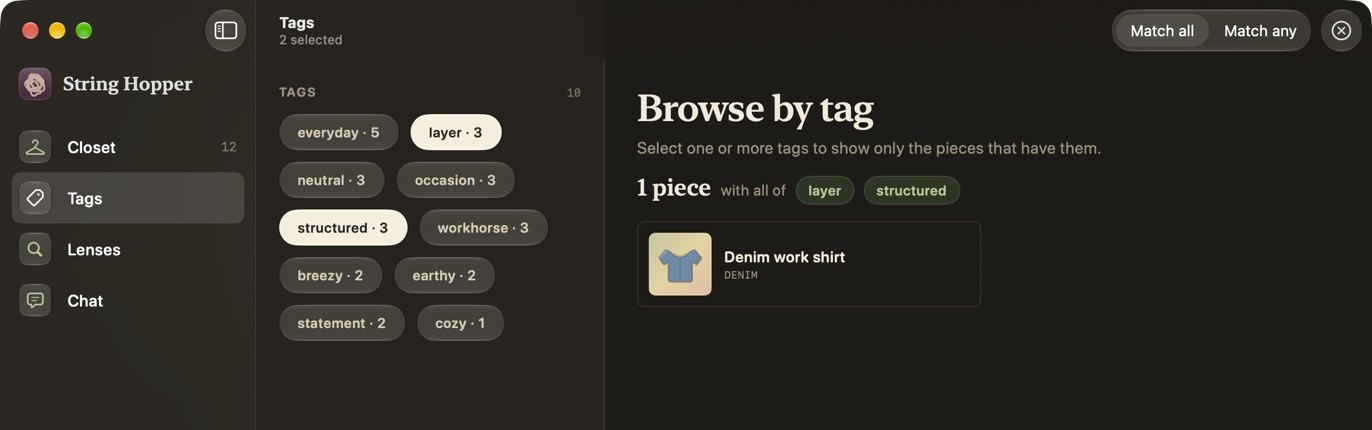
Click a tag to show only the pieces that have it. Click more tags to narrow the list.
-
Choose how tags combine
Click Match all to show pieces that have every selected tag. Click Match any to show pieces that have at least one. Both are at the top right. Click the clear button beside them to remove the filter.
Other ways to tag
- While adding or editing a piece. In the form, type under Tags · your own and click Add, or click one of the suggestions.
- In chat, for many pieces at once. For example, type Tag everything linen “summer”. See Use chat.
How lenses use tags
A lens can read your tags, so you can use tags for things the app does not record. For example, the app does not track how often you wear a piece, but you can tag a piece workhorse and refer to that tag in a lens. You can also limit a lens to pieces with certain tags before you run it. See Run a lens.