
Add a batch from photos
Add many photos at once. The app reads each photo and makes a draft. A draft is added to the closet only after you click Add.
-
Open Add from photos
Open Closet and click the photos button at the top right, beside the + button (Add from photos), or press ⇧⌘N.
-
Bring the photos in
Use any of these:
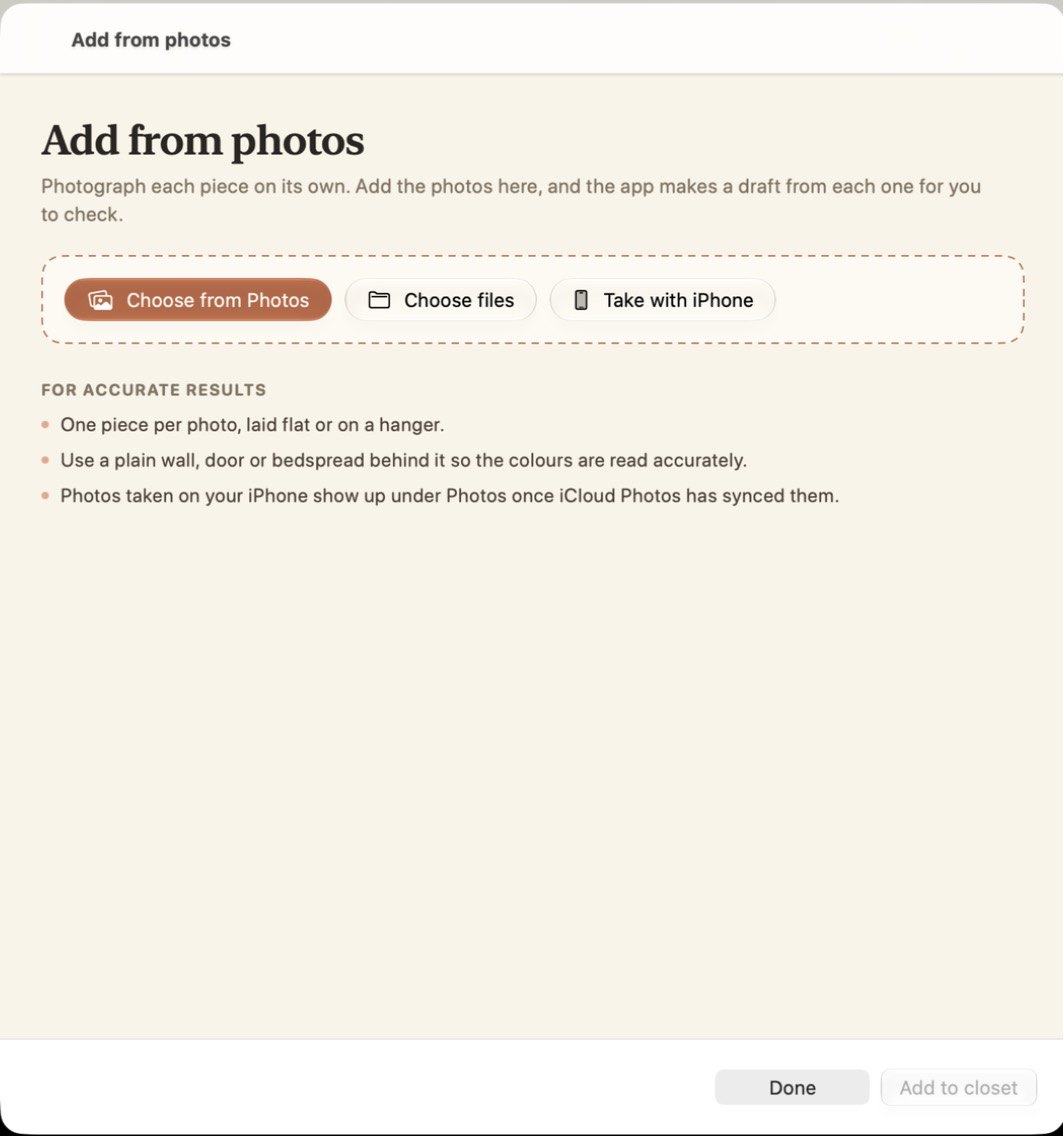
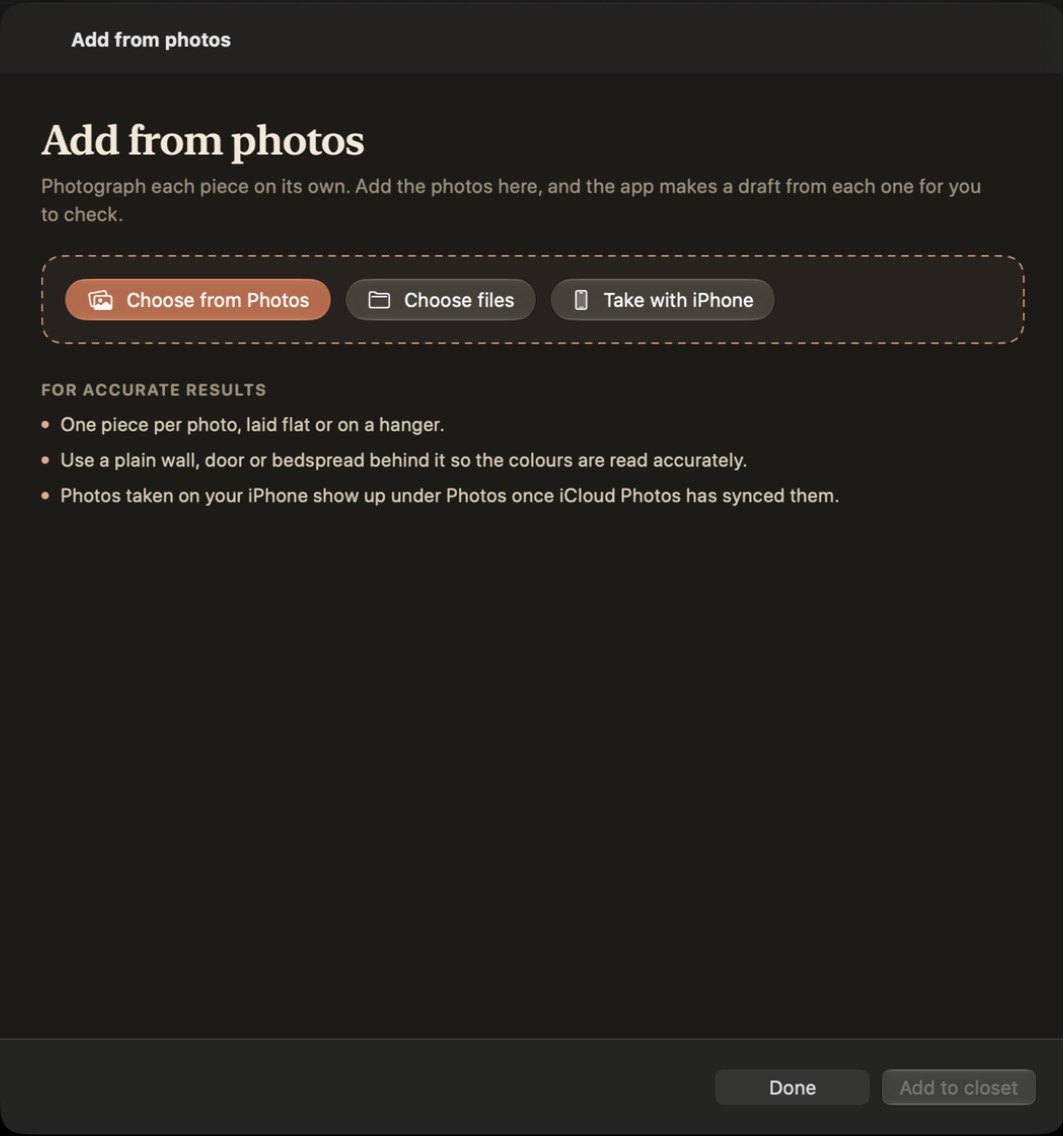
- Click Choose from Photos to pick from your Photos library, up to 60 at a time.
- Click Choose files to pick image files from a folder.
- Click Take with iPhone to take a picture with your iPhone's camera.
- Drag image files onto the sheet.
For accurate results, photograph one piece per photo, laid flat or on a hanger, against a plain wall, door or bedspread. Photos taken on your iPhone appear under Photos once iCloud Photos has synced them.
-
Wait while each photo is read
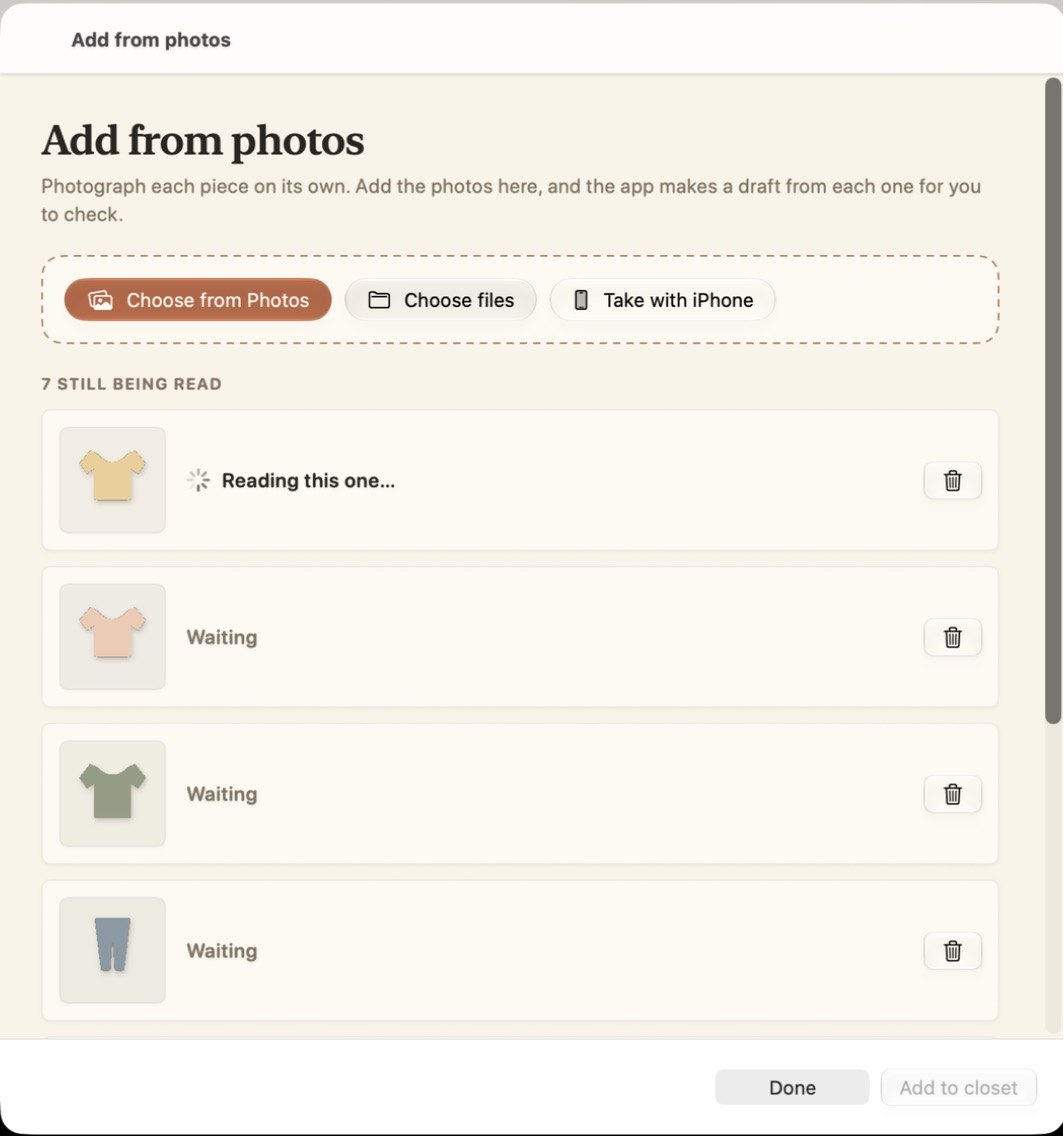
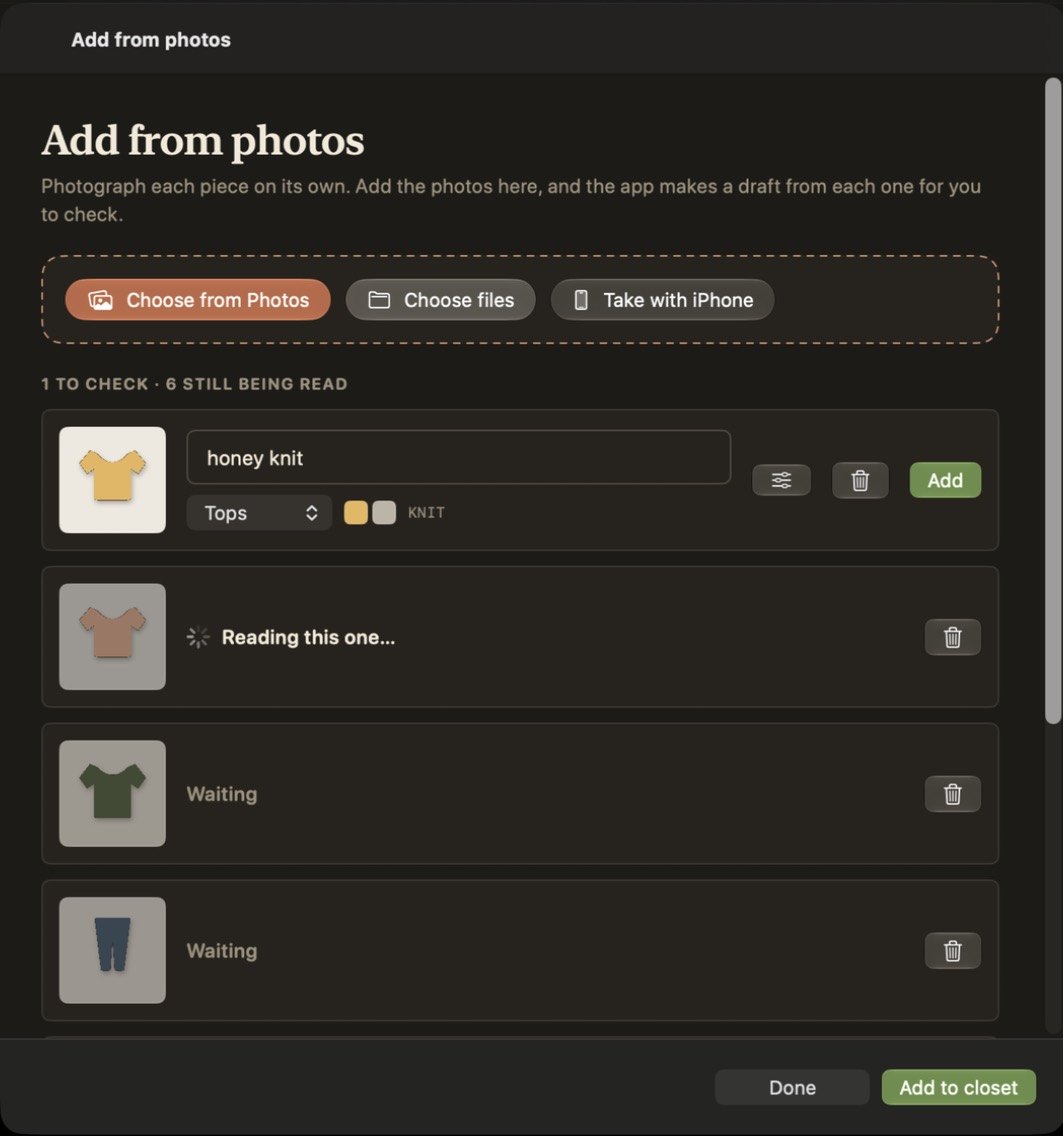
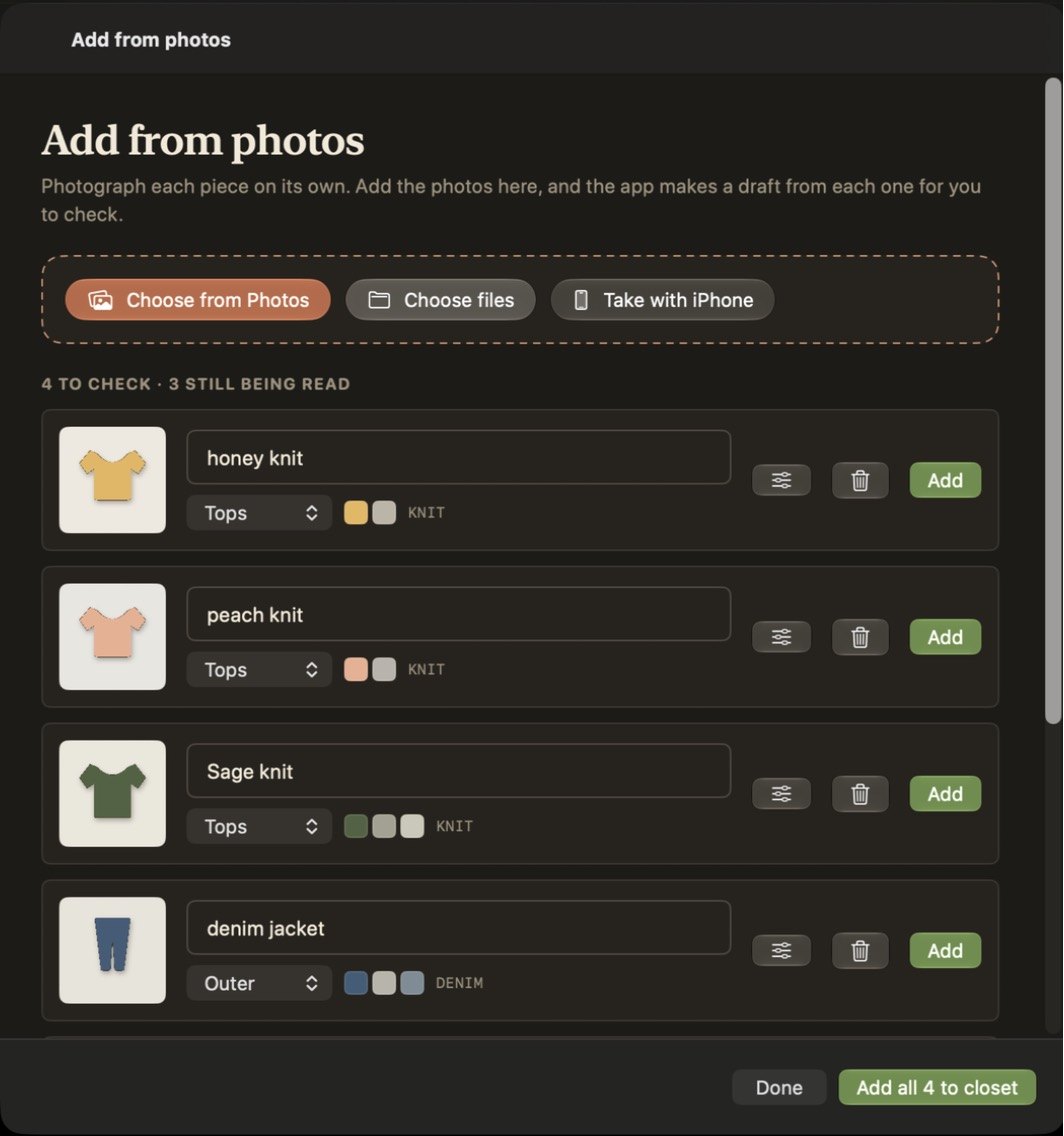
The app reads the photos one at a time. The row it is reading shows Reading this one…. The other rows show Waiting.
-
Check each draft
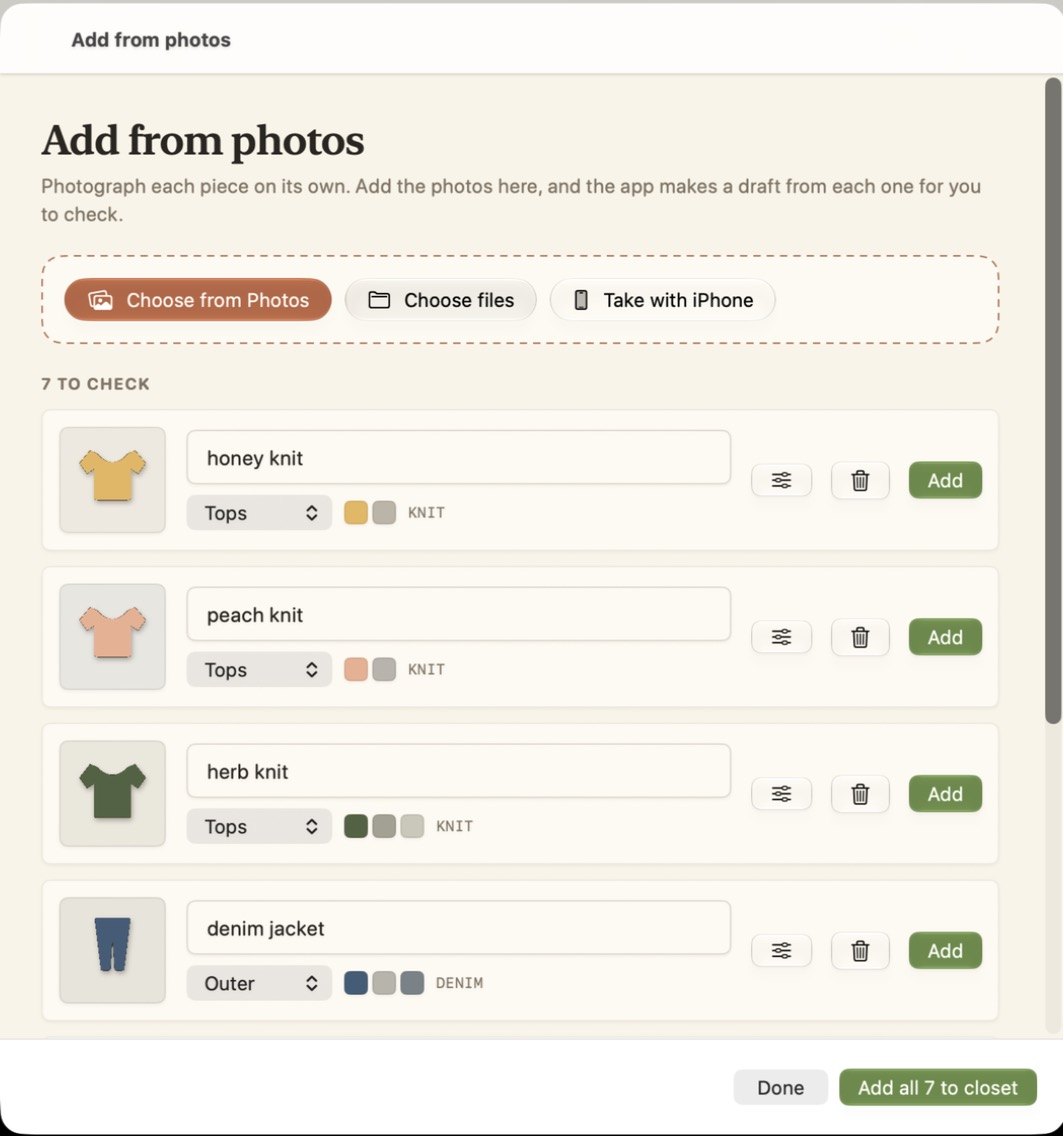
After the app reads a photo, its row shows the name, category, colours and fabric.
- Edit the name or category directly in the row.
- Click the sliders button to open the full form and check every detail.
- Click the trash button to discard the photo.
-
Add the drafts
Click Add on a row to add that piece, or click the button at the bottom right to add every draft that is ready. It reads Add to closet, or Add all to closet with a count when there is more than one.
-
Finish later if you need to
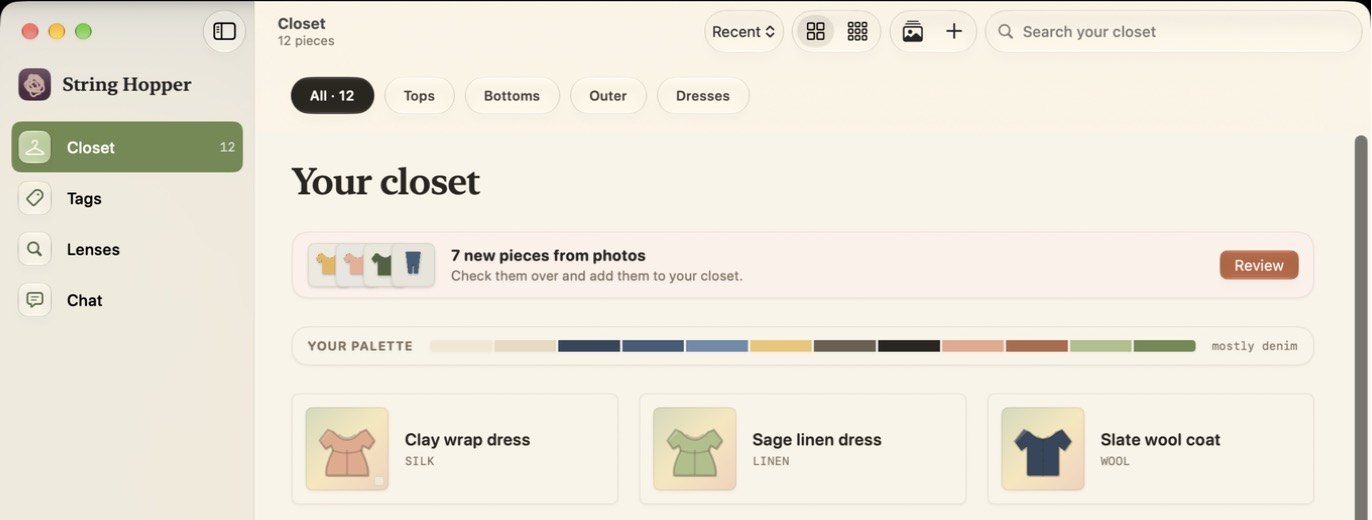
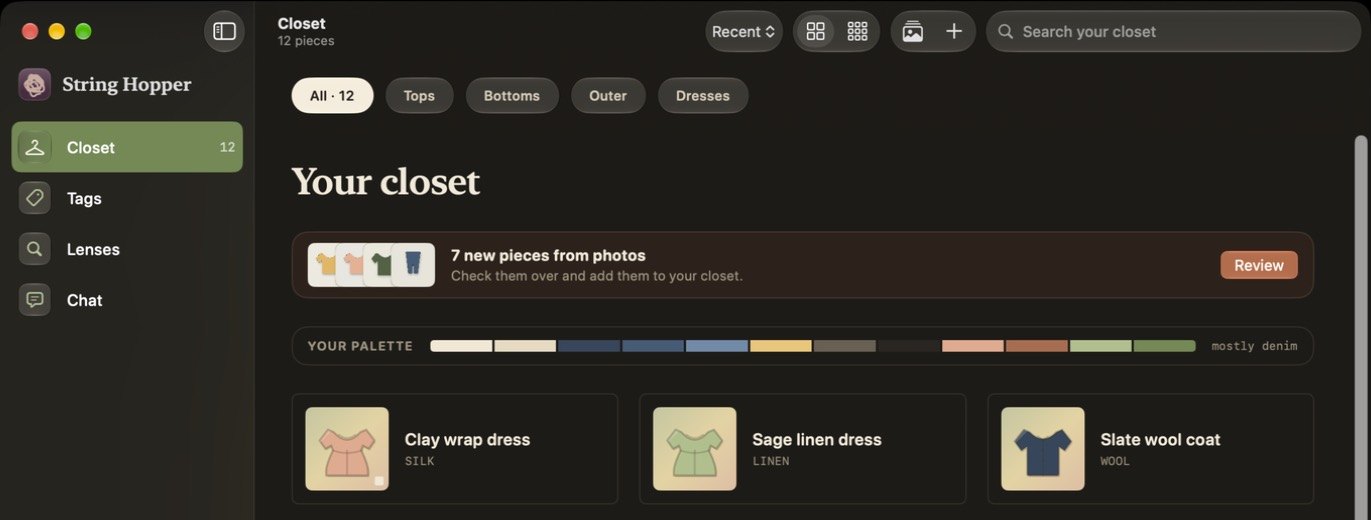
Click Done to close the sheet. The app keeps the drafts you have not added. In Closet, a banner shows how many drafts are waiting. Click Review on the banner to return to them.
If a photo cannot be read
The row shows Couldn't read this one. Click Try again to read it again, or Fill in to enter the details yourself.