
Connect a local model
Use a model server running on your Mac instead of Apple's on-device model. Any server with an OpenAI-compatible /v1 API works.
Start a model server with a model loaded. See Set up a server for LM Studio, Ollama, llama.cpp and MLX, and Choose a model if you have not picked one.
-
Open Settings
Click Settings at the bottom of the sidebar, or press ⌘,.
-
Choose the local model option
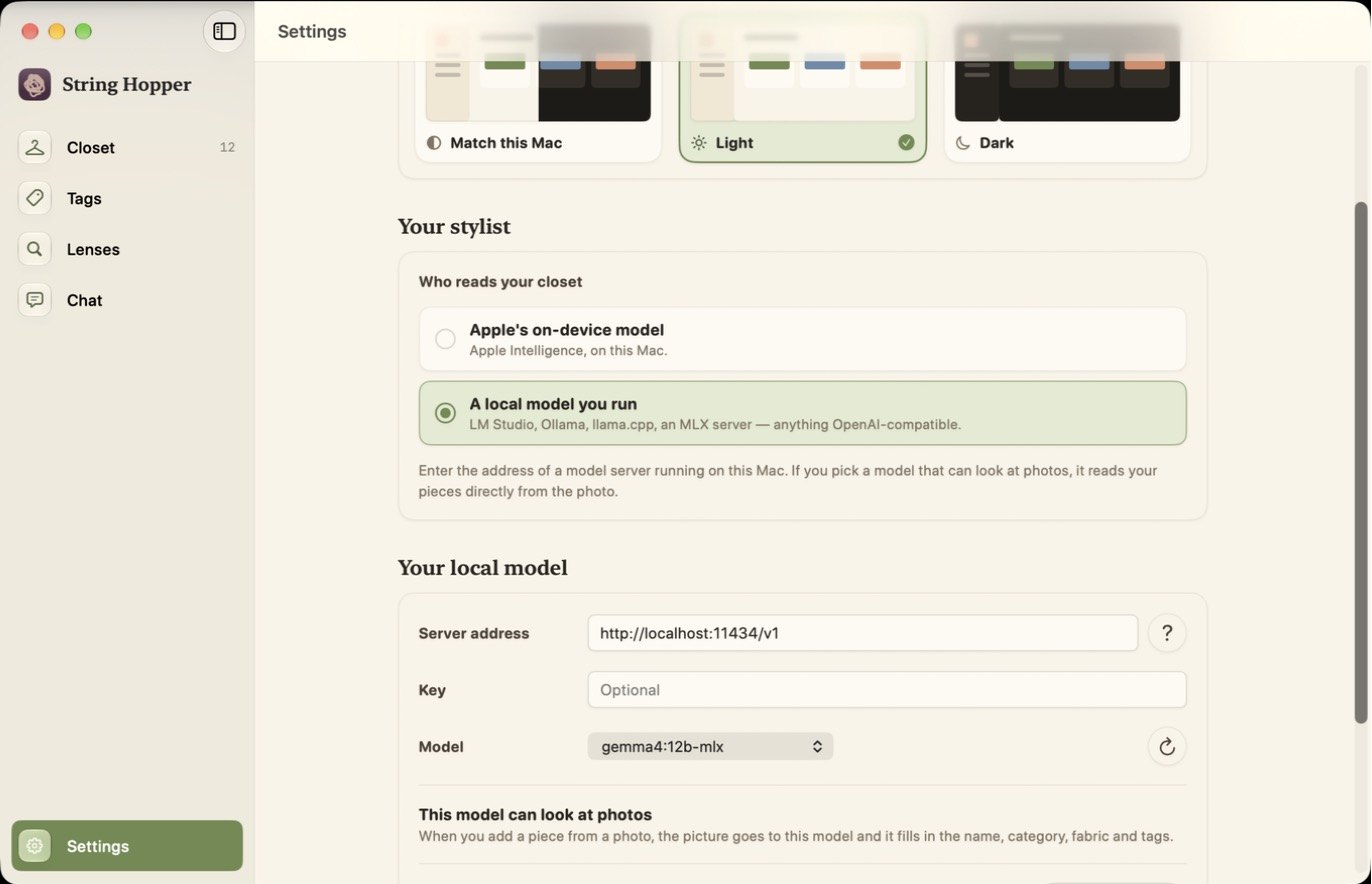
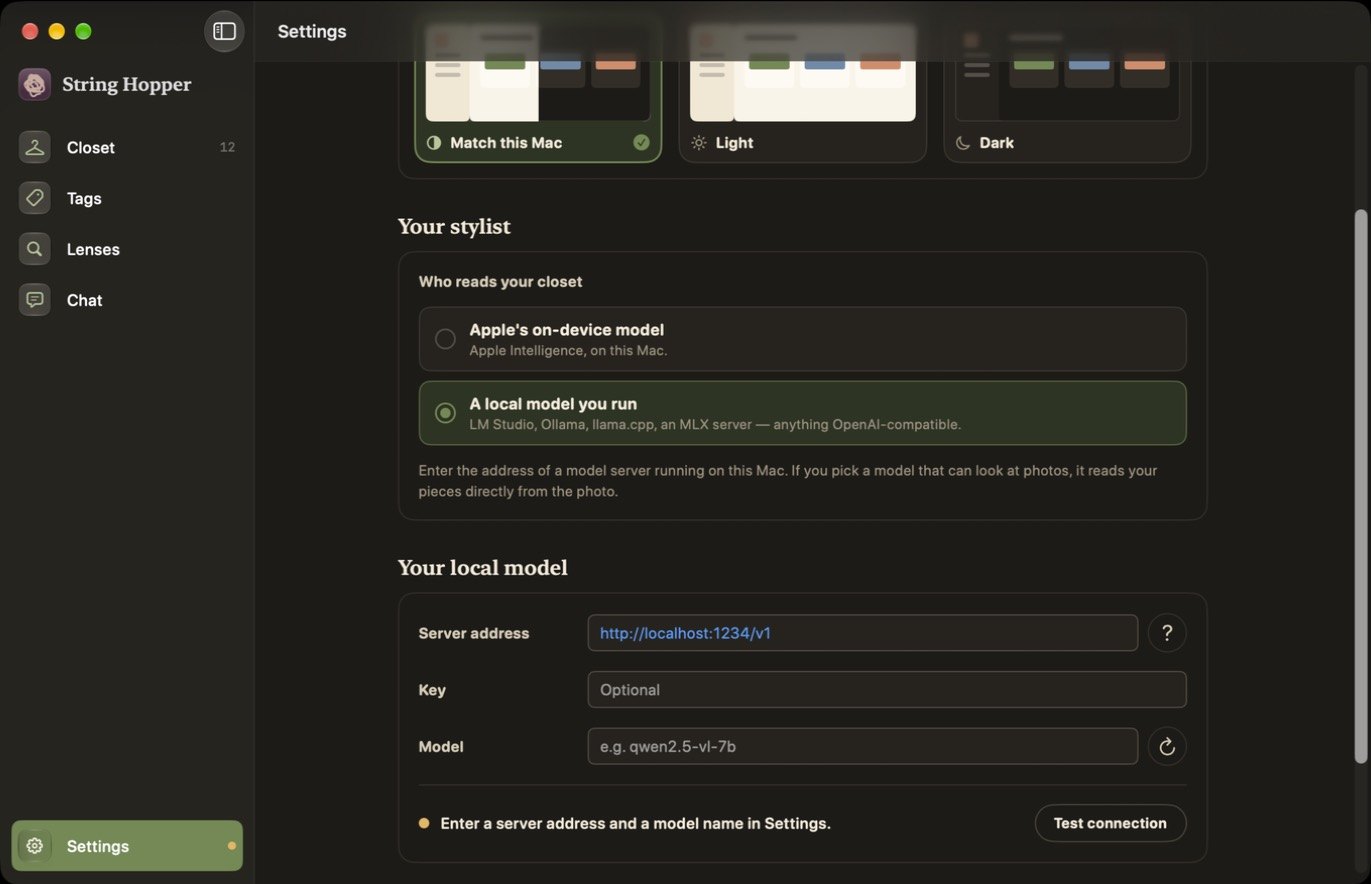
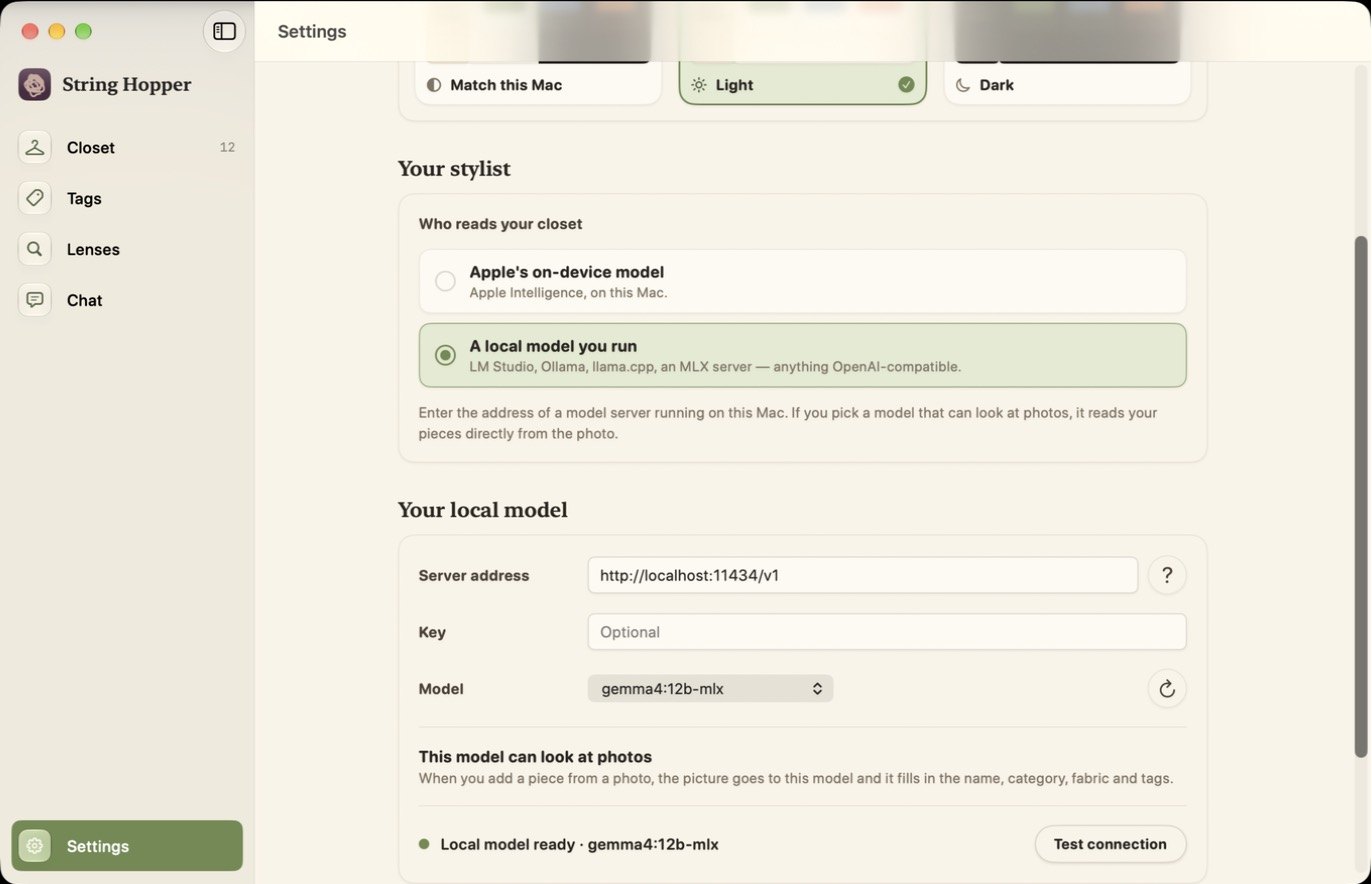
Under Your stylist, click A local model you run. A card named Your local model appears below.
-
Enter the server address
Type the address in Server address. It must start with
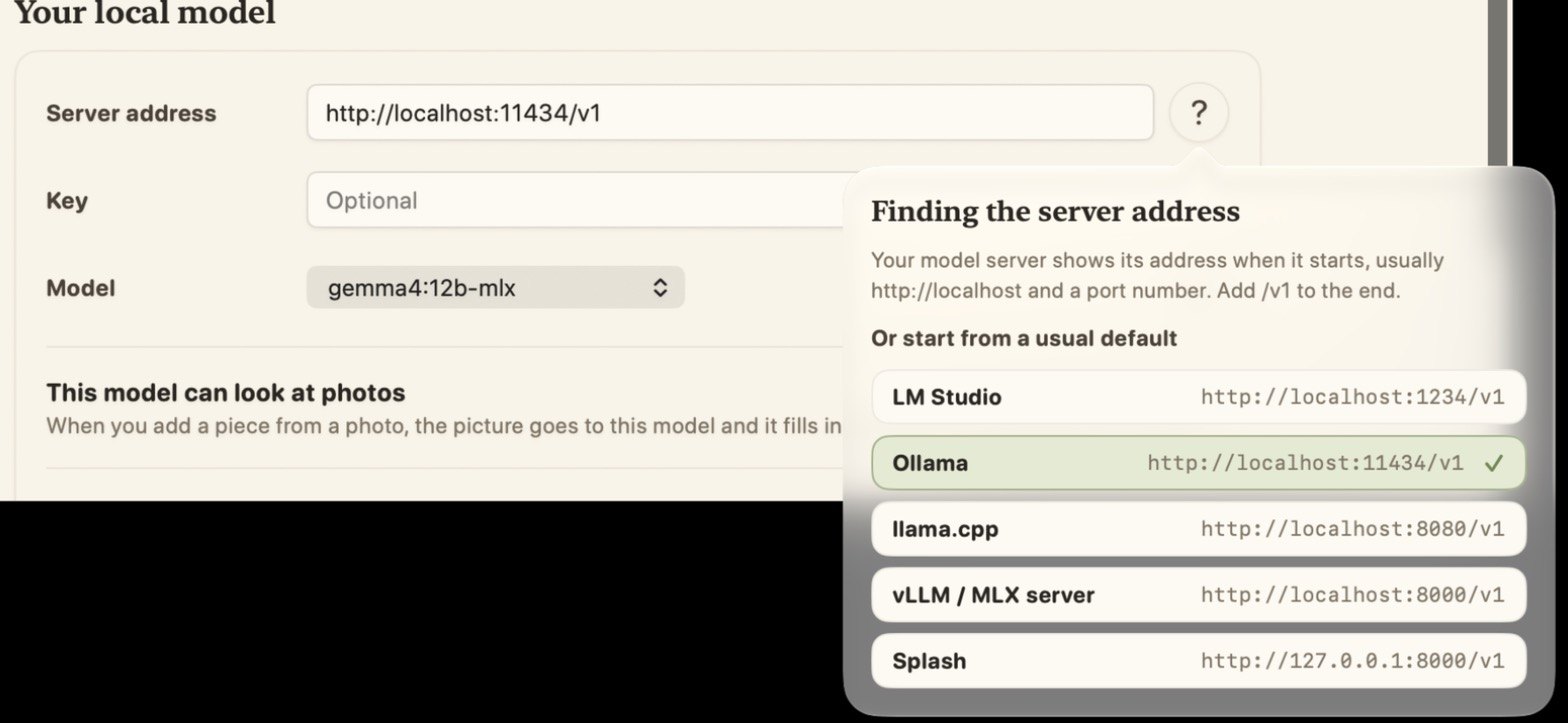
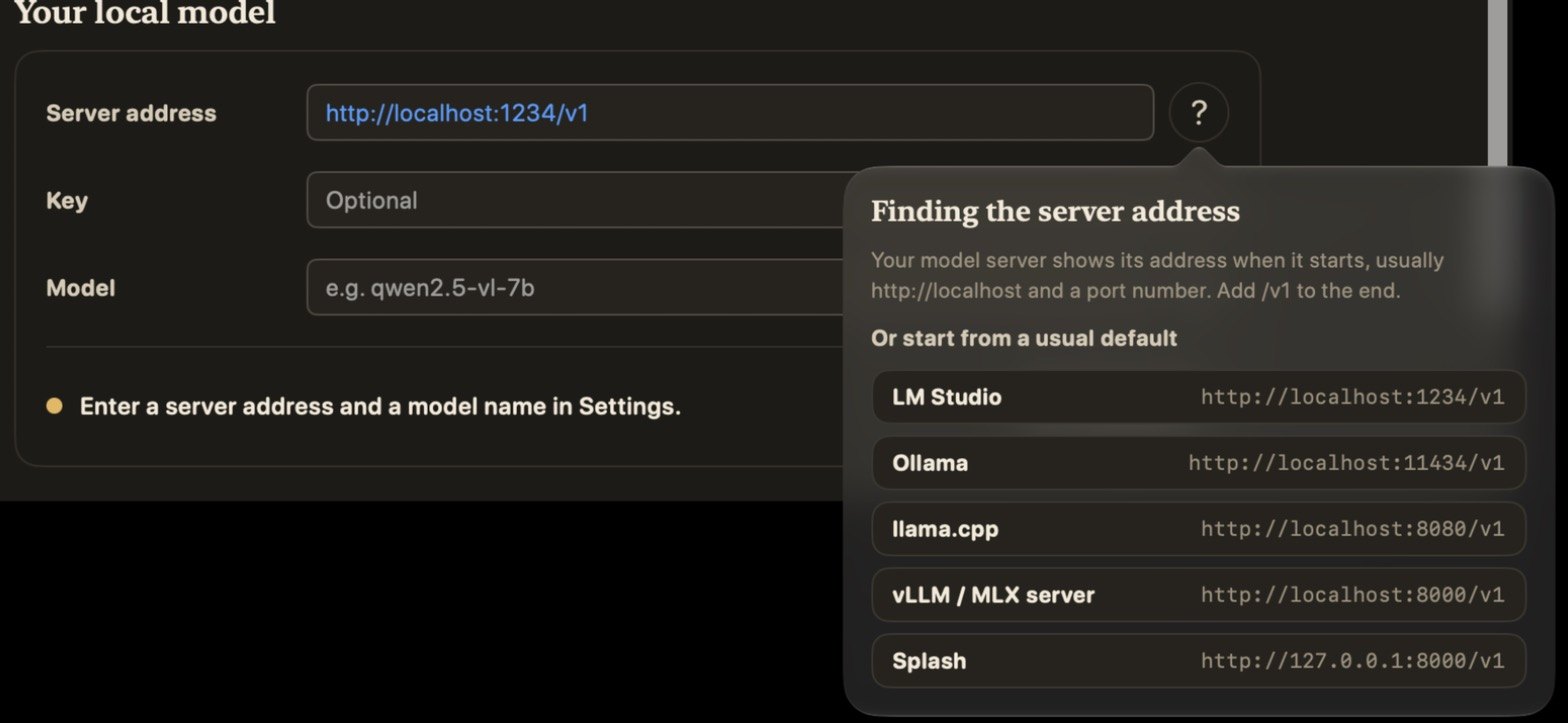
http://orhttps://and usually ends in/v1. Your server shows its address when it starts.Or click the ? button beside the field and pick one of the usual defaults:
Server Default address LM Studio http://localhost:1234/v1Ollama http://localhost:11434/v1llama.cpp http://localhost:8080/v1vLLM / MLX server http://localhost:8000/v1Splash http://127.0.0.1:8000/v1Leave Key empty unless your server requires one.
-
Pick the model
After the server answers, Model shows a list of the models it is serving. Choose one. After you load a different model on the server, click the circular-arrow button to refresh the list.
-
Check what happens to photos
Below the model, Settings shows whether the model can look at photos. The app detects this. See Photos: can your model see?
-
Test the connection
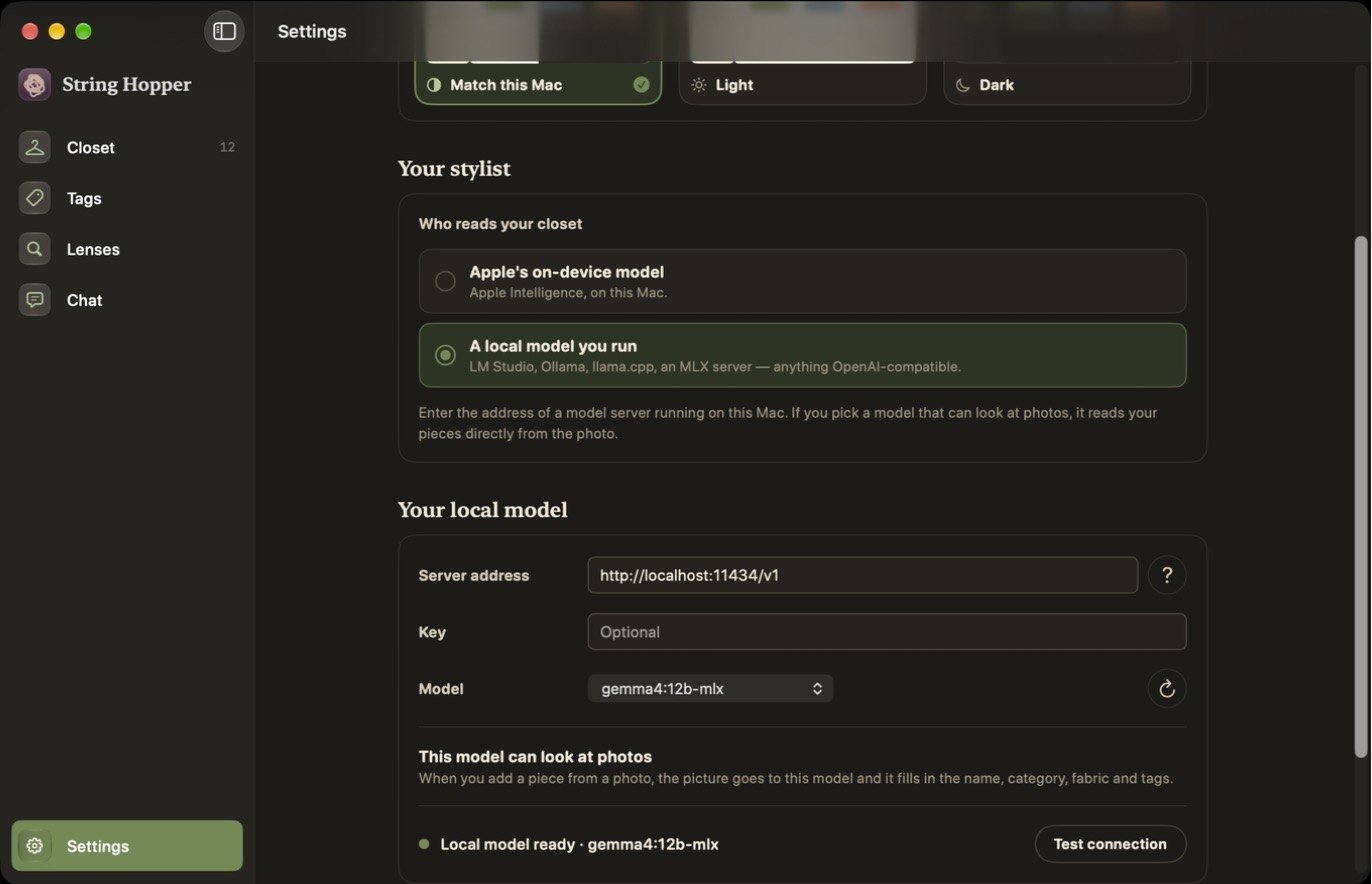
Click Test connection. A green dot and Local model ready, followed by the model's name, means the connection works.
-
Try it
Run a lens. To check a model more thoroughly, use the five-minute check.
Switch back to Apple's model
In Settings, under Your stylist, click Apple's on-device model. Your local settings are kept.
If the connection fails
See Local model in Troubleshooting for each message and its fix.