
Add a piece
Add one piece to your closet. You can start from a photo and let the app fill in the details, or type them yourself.
Reading a photo needs a model. Without one, the app still reads the colours but cannot name the piece. See Check that a model is ready.
-
Open the form
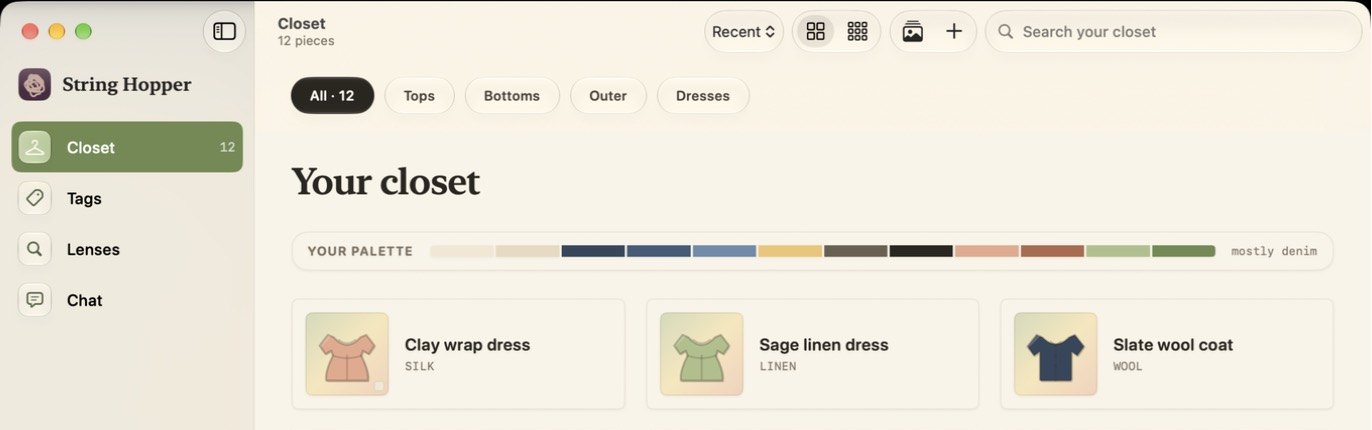
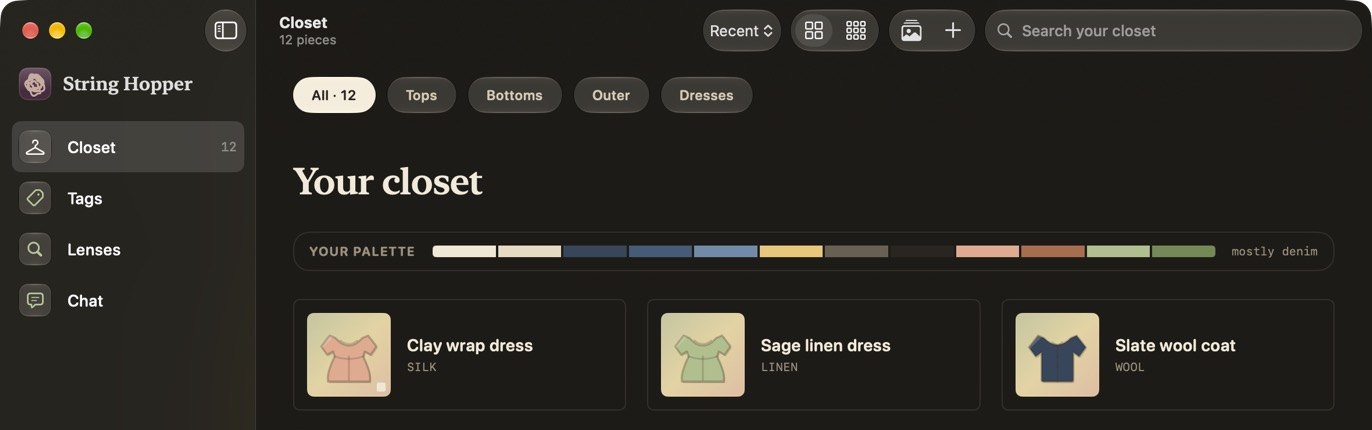
Open Closet in the sidebar and click the + button at the top right (Add a piece), or press ⌘N.
-
Choose a photo
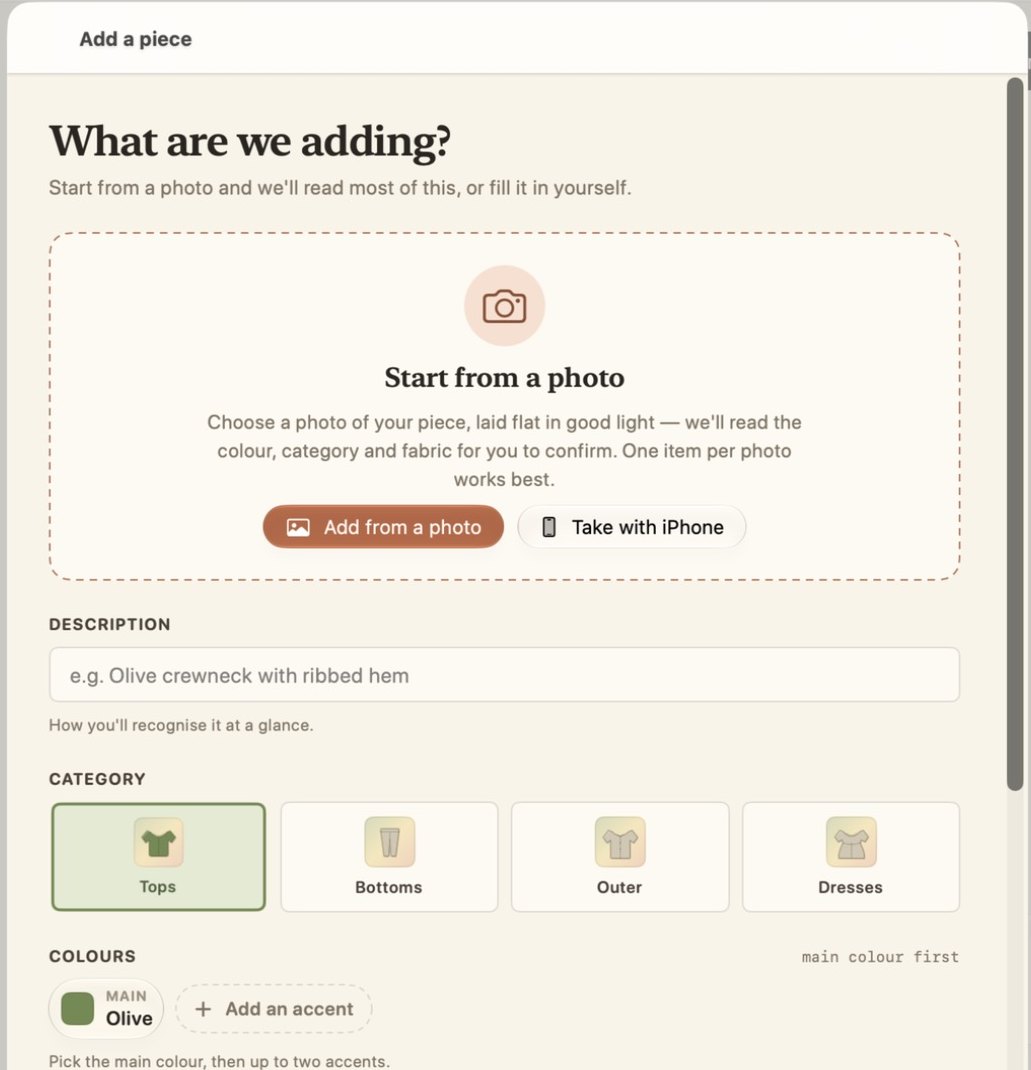
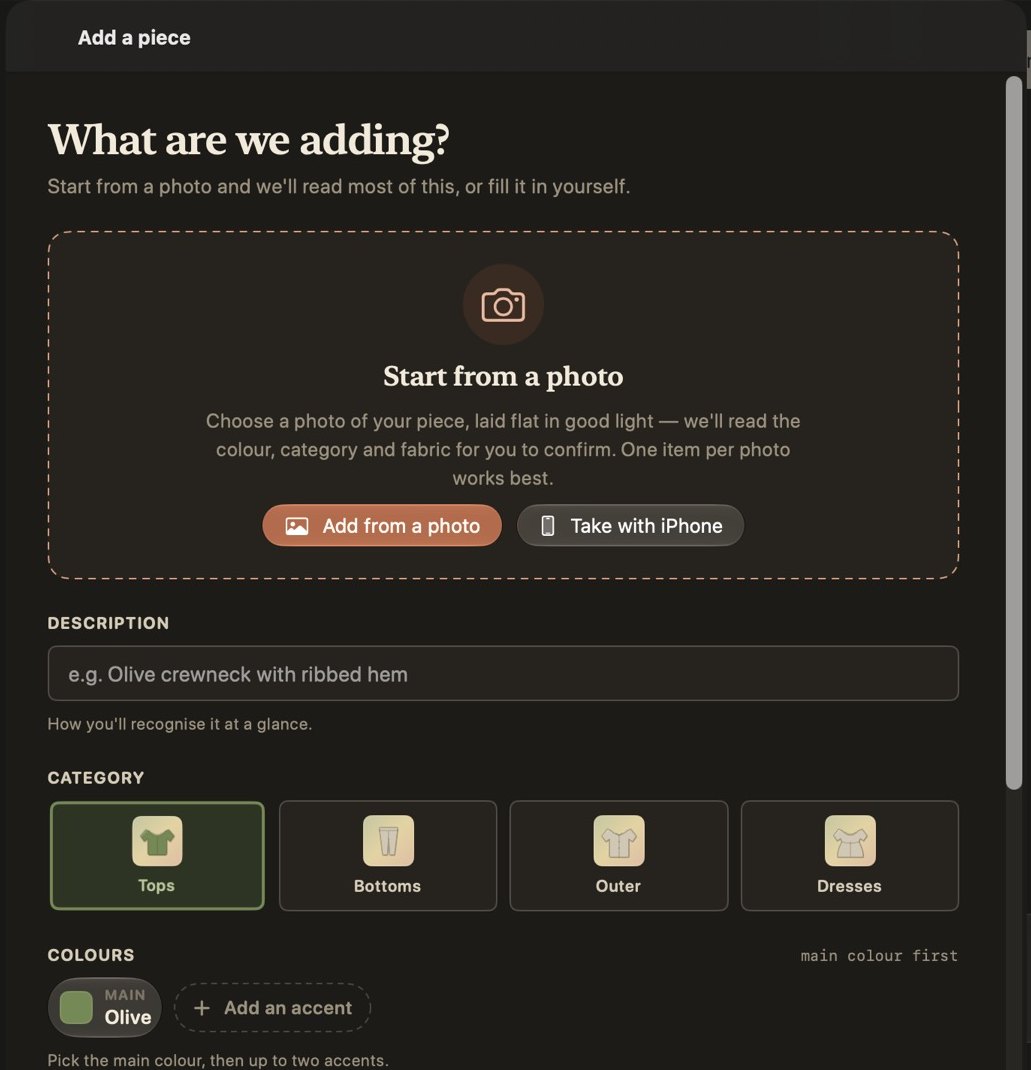
In the Start from a photo card, click Add from a photo and pick an image file. Or click Take with iPhone to take the picture with your iPhone's camera.
- Lay the piece flat, in good light.
- Use one piece per photo.
- Use a plain background so the app reads the colours accurately.
-
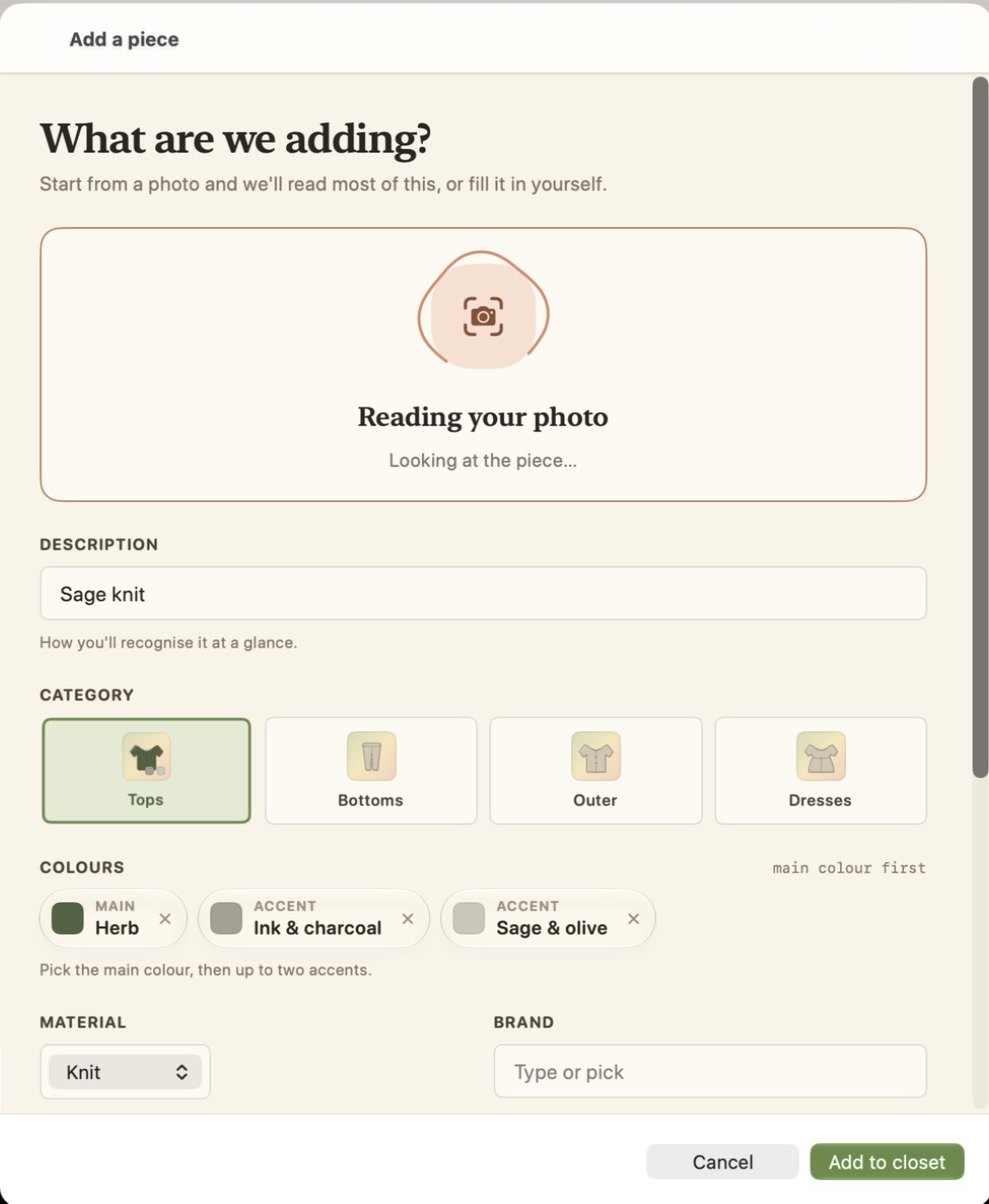
Wait while the app reads the photo
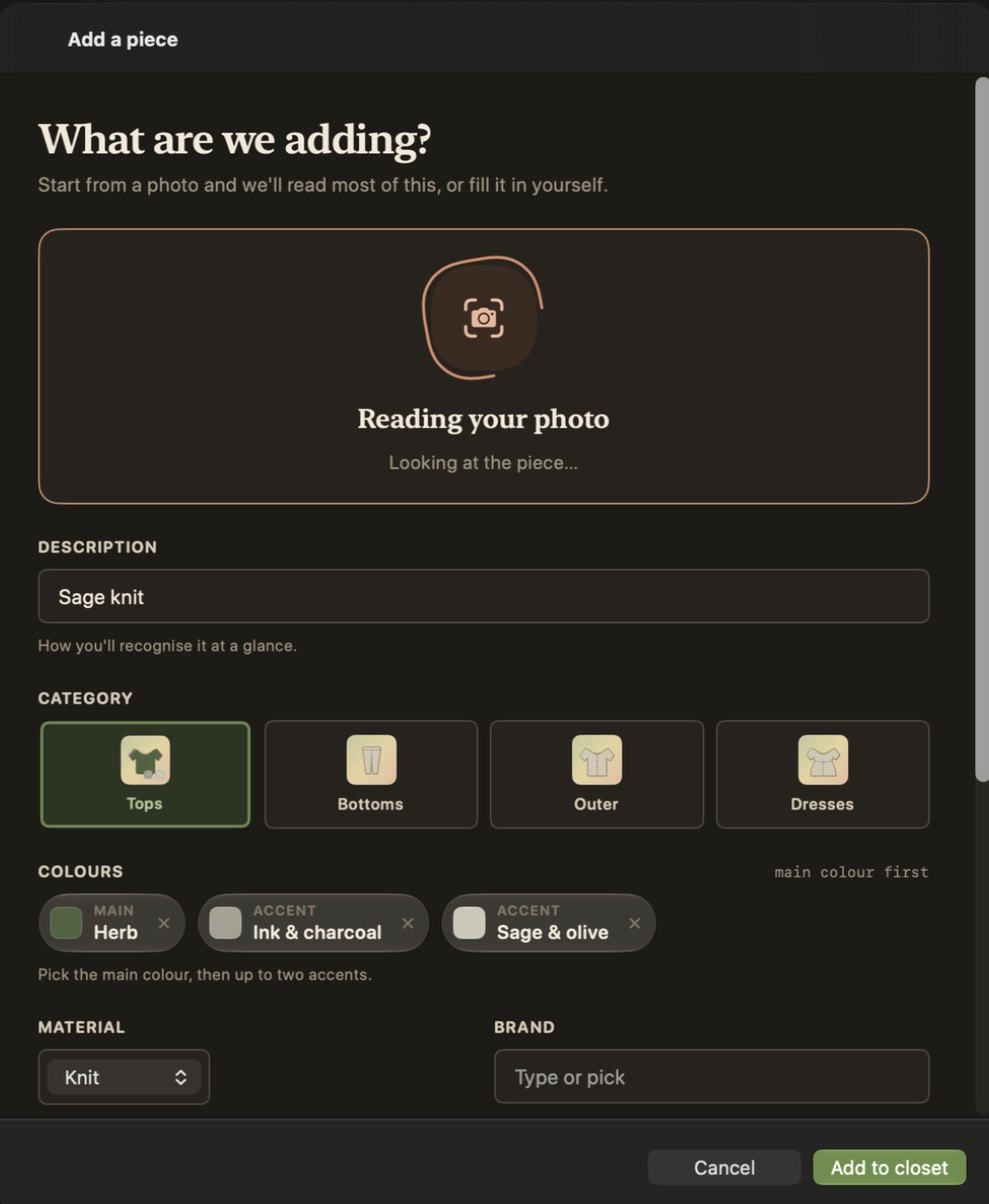
The app shows Reading your photo while it identifies the piece. With a local model this can take up to a minute.
-
Check the details
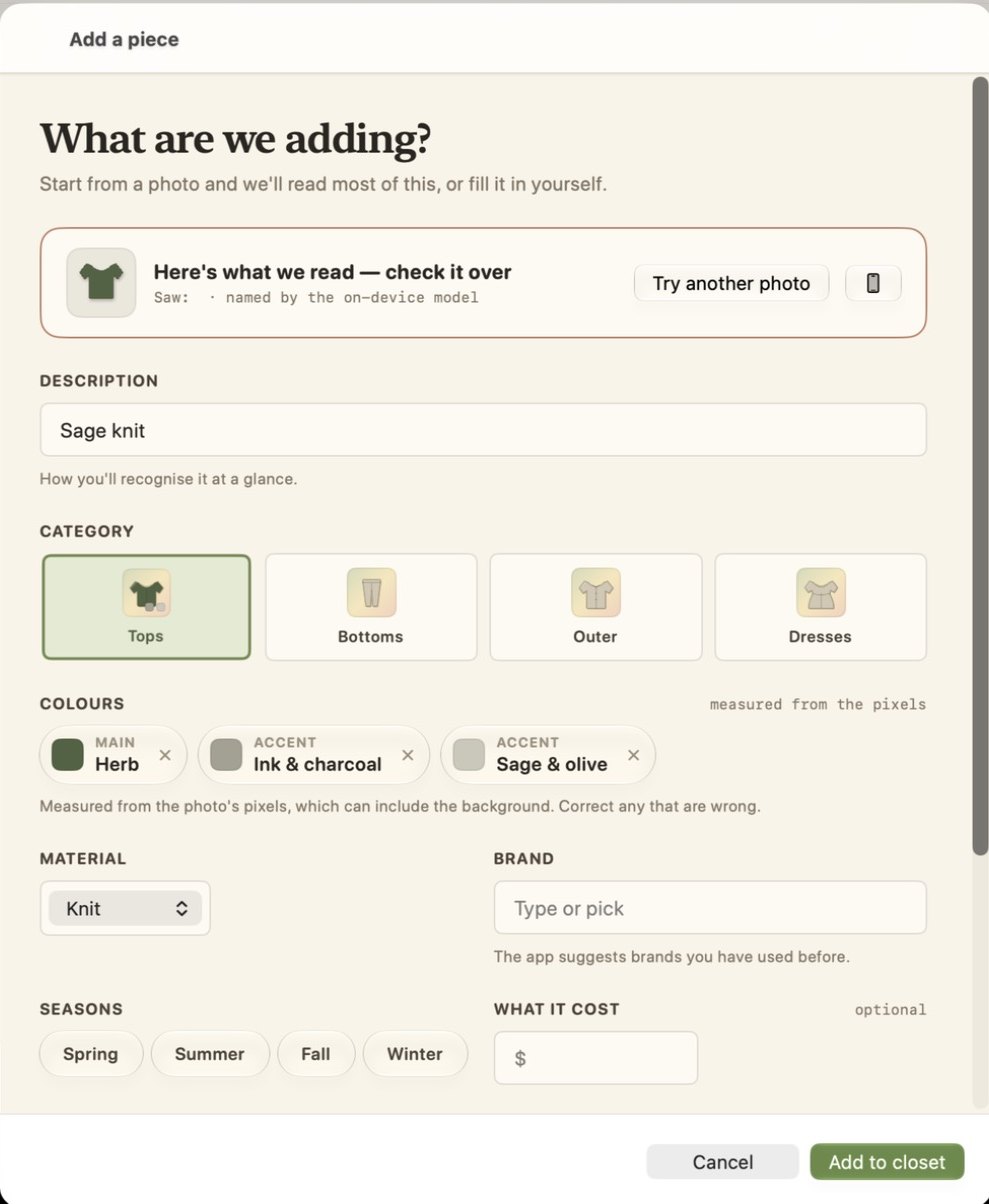
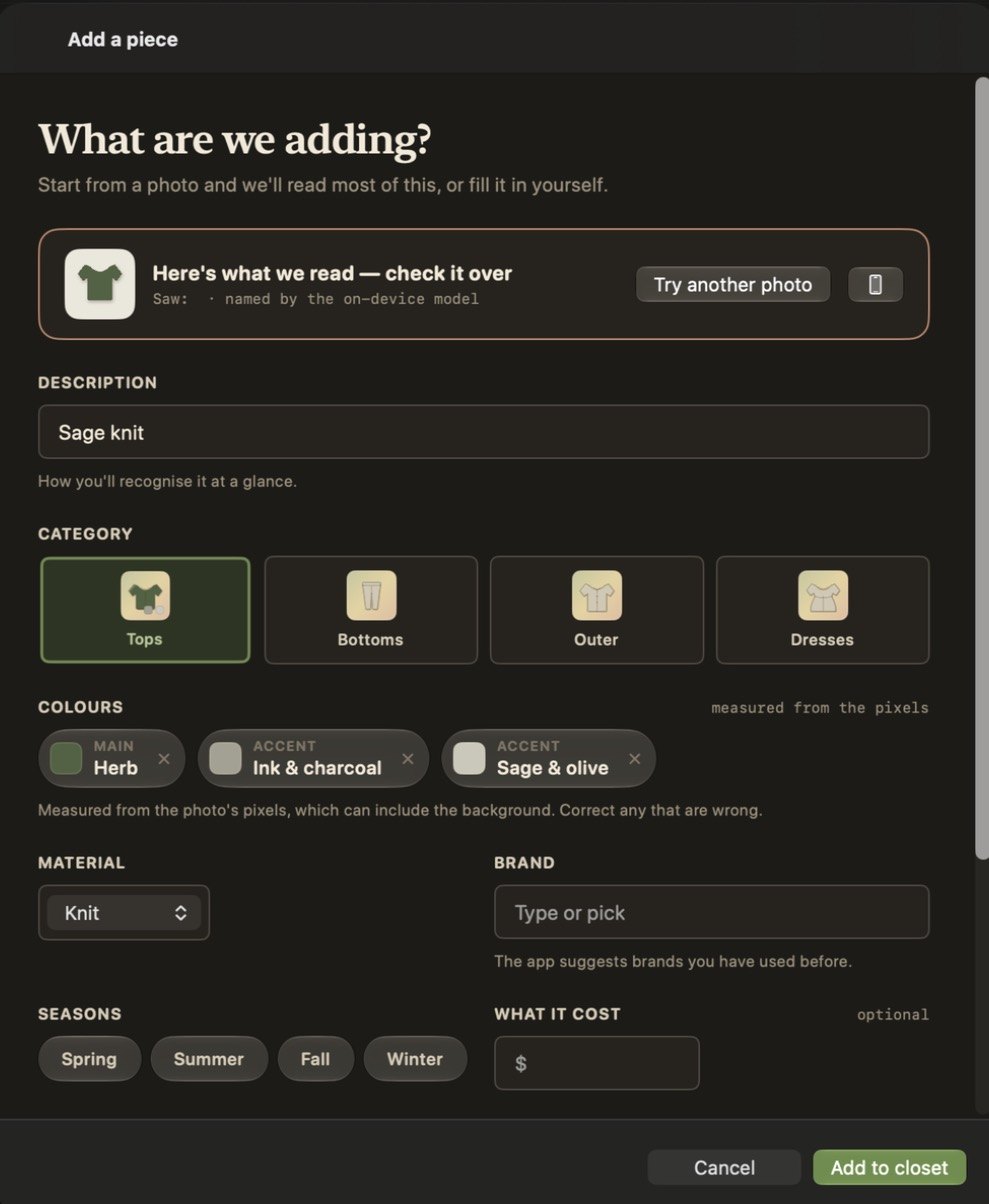
When the app shows Here's what we read — check it over, it has filled in the form. Correct anything that is wrong.
Field What to enter Description A short name, such as “Olive crewneck with ribbed hem”. Category Click one of the four tiles: Tops, Bottoms, Outer or Dresses. Colours The main colour, then up to two accents with Add an accent. Material The fabric, chosen from a list. Brand Type one, or pick one already used in your closet. Seasons Any of Spring, Summer, Fall, Winter. What it cost Optional. Tags Your own words. See Tag and filter. Notes Optional. If most of the details are wrong, click Try another photo.
-
Add it to the closet
Click Add to closet. The app adds the piece and shows it as a tile in Closet.
Without a photo
Skip steps 2 and 3. Fill in Description and the other fields yourself, then click Add to closet.
Edit or remove a piece later
Click the piece's tile in Closet to open it.
- Click the pencil button at the top right (Edit) to open the same form. Click Save when you are done.
- Click the trash button beside it (Remove), then confirm. The app deletes the piece. You cannot undo this.
If the photo is read wrongly
See Photos in Troubleshooting. To add many photos at once, use Add a batch from photos.